How to make a barcode (EAN-13, Code 128, and more)
Make a barcode for free on your phone: which format to choose, when you need a GS1 number, step-by-step instructions, and how to print barcodes that scan.
To make a barcode, pick the right format for where it will be scanned, enter the number or text, and export it as an image. For your own labels, stock, or tickets, Code 128 is the usual choice. For products sold in shops, you need an EAN-13 or UPC-A barcode with a number issued by GS1. EveryQR on Android has a free barcode maker that creates the common formats offline and checks your input against each format’s rules.
What you need: an Android phone, the number or text for the barcode, and (for retail products) your GS1 number.
Which barcode format should you use?
| Use | Format | What it accepts |
|---|---|---|
| Your own stock, asset, or shelf labels | Code 128 | Letters, digits, and symbols, any length that fits |
| Older systems that ask for it | Code 39 | Uppercase letters, digits, and a few symbols |
| Products in shops (most countries) | EAN-13 | 13 digits, from a GS1-issued number |
| Products in shops (US and Canada) | UPC-A | 12 digits, from a GS1-issued number |
| Very small products | EAN-8 or UPC-E | Short GS1 numbers |
| Outer cartons and cases | ITF | An even number of digits |
| Library and blood-bank labels | Codabar | Digits and a few symbols |
| Small labels that need more data | Data Matrix | Text in a small square |
If someone else’s system will scan the barcode, such as a warehouse, marketplace, or retailer, ask which format they require before you make it. Types of barcodes explains each format in more detail.
Do you need a GS1 number?
For products sold in shops or on most marketplaces, yes. EAN-13 and UPC-A numbers are allocated by GS1, the global standards body, through national offices such as GS1 India. The number identifies your company and product worldwide. A made-up number in the right format may scan, but it can clash with another company’s product and be rejected by retailers.
For internal use, no. Stock labels, asset tags, member cards, and event tickets can use any format your own scanner reads, usually Code 128, with your own numbering.
How to make a barcode with EveryQR
- Open EveryQR and tap Create.
- Choose Barcode Creation.
- Tap Barcode format and pick the format, such as Code 128 or EAN-13. Each option lists what it accepts.
- Enter the data. For EAN-13 and UPC-A, enter the full number from GS1, including its final check digit. EveryQR checks the length, the allowed characters, and the check digit, and tells you if something doesn’t fit the format.
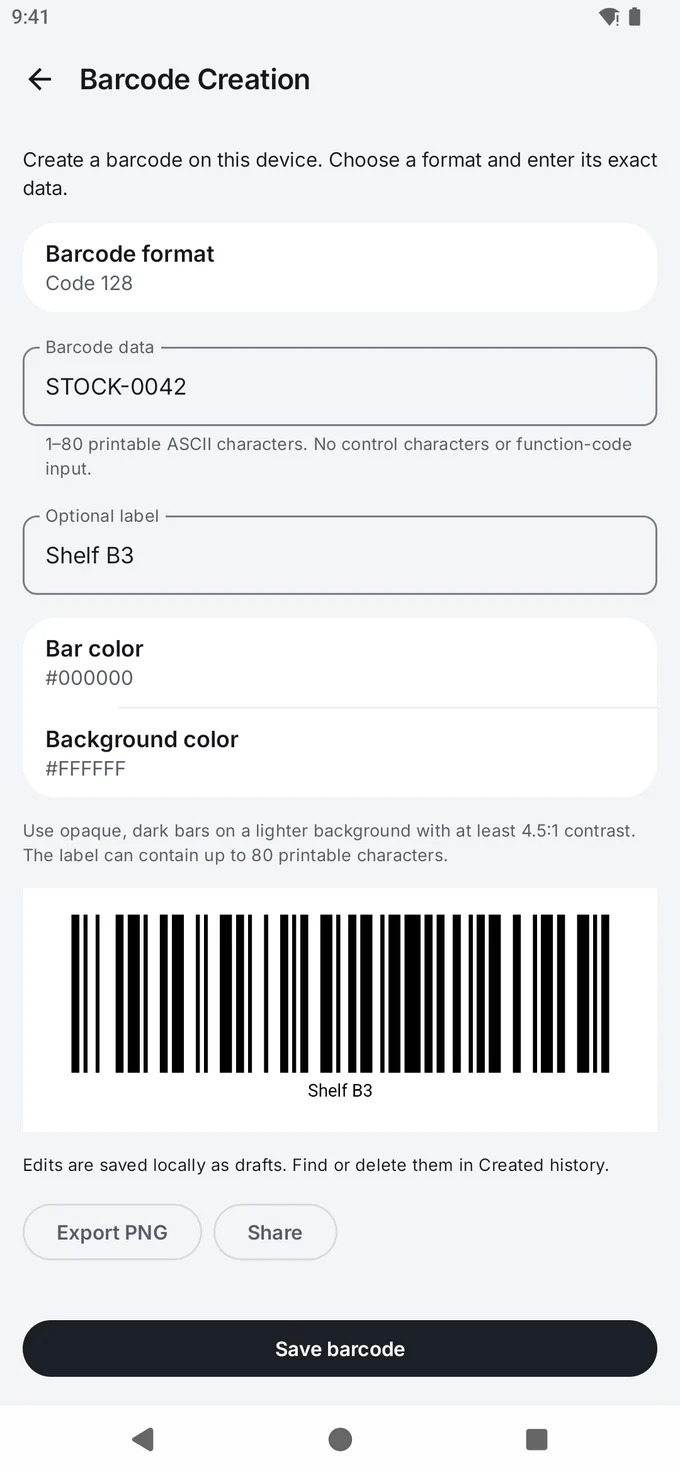
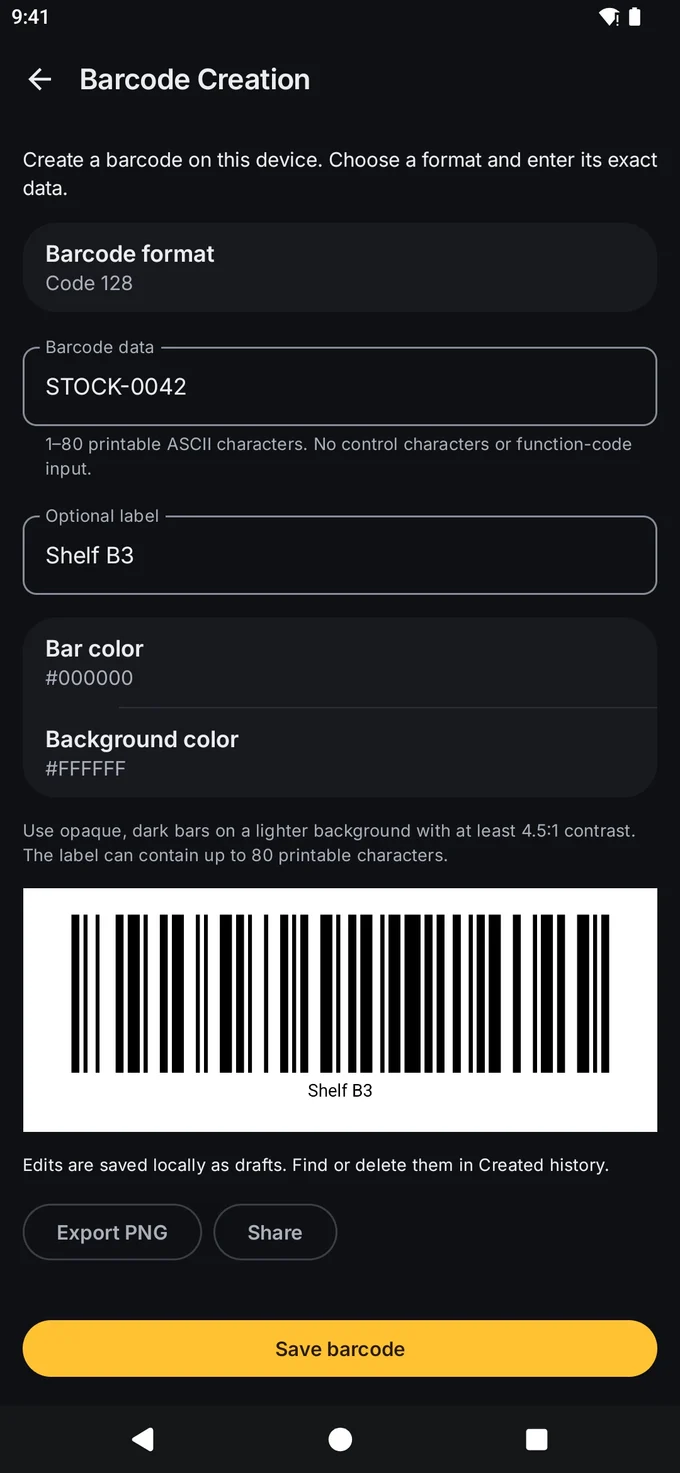
- Optionally, add a label under the bars, or change the bar and background colors. Keep the bars dark and the background light; EveryQR asks for at least 4.5:1 contrast.
- Tap Export PNG to save the image, or Share to send it. Save barcode keeps it in your History.
- Scan the printed barcode with a phone or the scanner that will be used for real.
EveryQR also creates 2D formats such as Data Matrix, PDF417, and Aztec, for short text.
How to print barcodes that scan
- Black bars on white. Red bars are invisible to many laser scanners, which use red light. Dark blue or dark green can work; test first.
- Keep the quiet zones. Leave blank space at both ends of a linear barcode, usually about ten times the width of the narrowest bar (the exact amount depends on the format). Don’t put text or borders there.
- Don’t stretch it. Scaling a barcode image unevenly changes the bar widths. Resize it proportionally, or export it at the size you need.
- Print sharp. EveryQR exports barcodes as PNG images. Place them in your label or print software at their natural size or larger, without blurring or smoothing. Fuzzy edges cause misreads.
- Don’t make it too small. GS1 sets a nominal size for retail barcodes (an EAN-13 is about 37 × 26 mm at 100%). Ask your printer before shrinking it.
- Test on the real scanner. A phone may read barcodes that a checkout scanner rejects.
Other ways to make a barcode
- Label printer software. Thermal label printers come with software that makes barcodes directly on labels. Good for printing hundreds.
- Spreadsheet barcode fonts. These work for some formats, such as Code 39, but others need extra encoding, which is easy to get wrong.
- Online generators. Fine for a one-off. Check the format and the check digit.
Troubleshooting
- The check digit is rejected. The last digit of an EAN or UPC is calculated from the others, and EveryQR expects the full number with it. Re-enter the number from your GS1 certificate.
- “Invalid character”. The format doesn’t accept something you typed, such as lowercase letters in Code 39. Use Code 128 instead.
- The scanner reads it as a different format. Some scanners have formats switched off. Check the scanner’s settings.
- It scans on a phone but not at the checkout. Check the print size, the contrast, and the quiet zones, then ask the retailer for their requirements.
Related guides
- Types of barcodes: 1D and 2D explained
- QR code vs barcode: what’s the difference?
- How to scan a barcode with your phone
Browse all QR code guides.