How to scan a barcode with your phone
Scan product barcodes, ISBNs, and labels with your Android phone's camera. Steps with EveryQR and built-in tools, what the number means, and fixes that work.
To scan a barcode with your phone, open a scanner app, point the camera at the barcode so the bars run across the frame, and hold it about 10–20 cm away until the number appears. Phone cameras read most common barcodes, including the ones on products, books, and parcels. EveryQR on Android scans barcodes and QR codes with the same camera screen, offline.
Product barcodes contain a number, not a description. Scanning one gives you the number and the barcode format; to find out what the product is, search the number.
What you need: an Android phone and the barcode, printed or on a screen.
How to scan a barcode with EveryQR
- Open EveryQR. It opens on the camera scanner.
- Point the camera at the barcode, with the bars running from side to side across the frame.
- Hold steady 10–20 cm away. For small barcodes, tap a zoom button such as 2× rather than moving very close, which can blur the image.
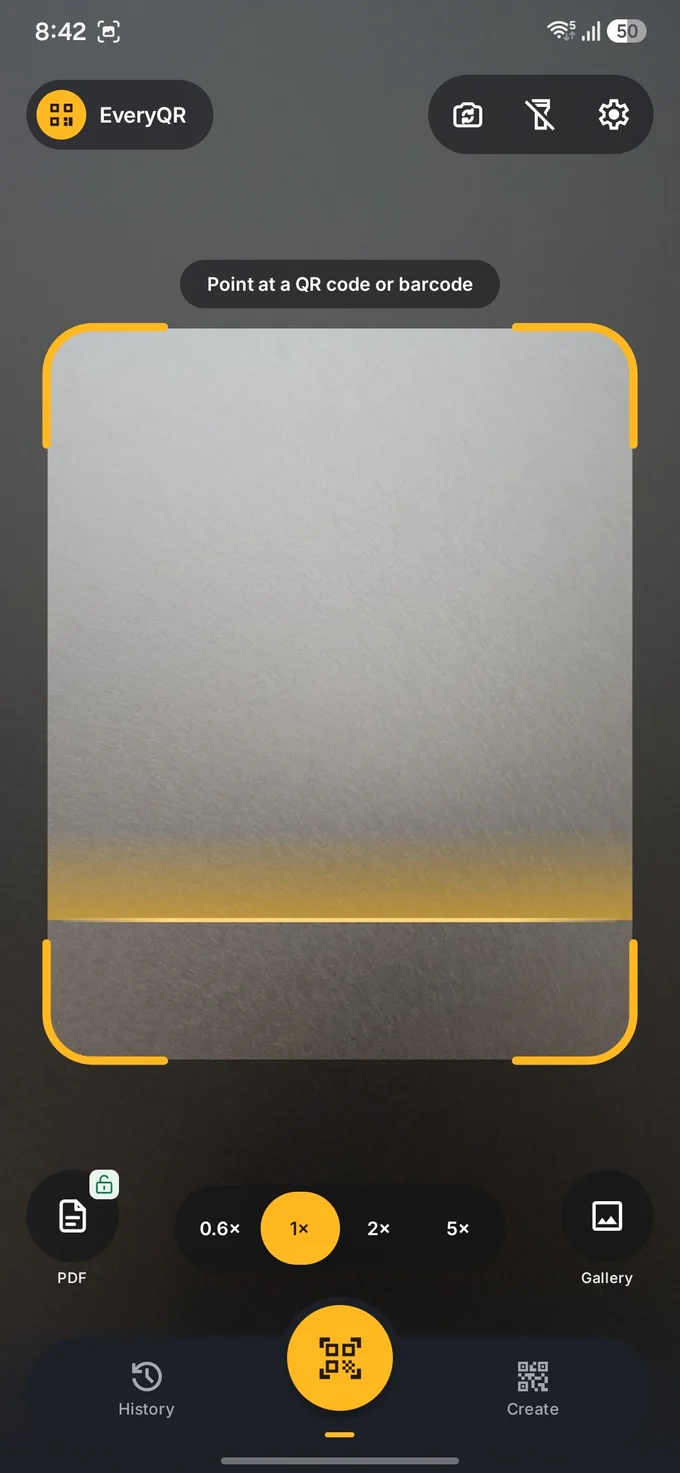
- In dim light, tap the flashlight button at the top of the screen.
- When the barcode is read, EveryQR shows the number and the format, such as EAN-13 or Code 128.
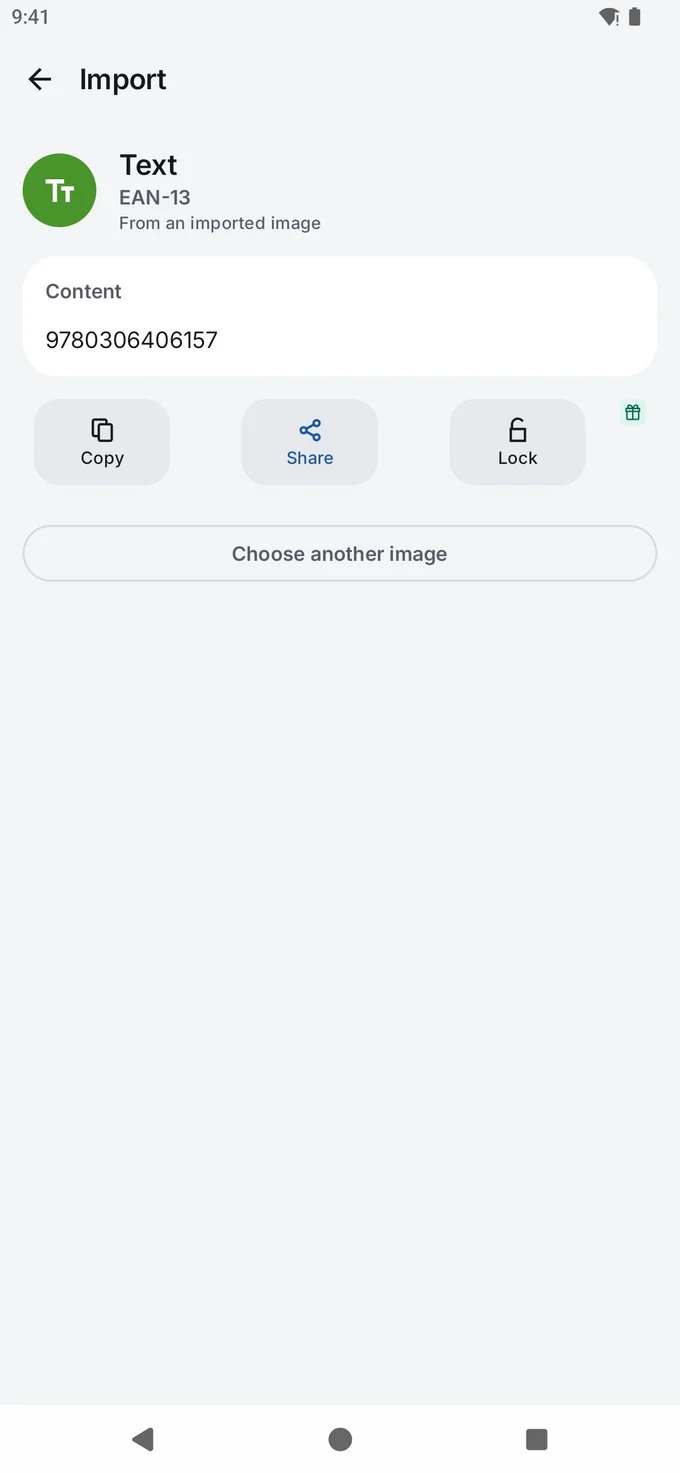
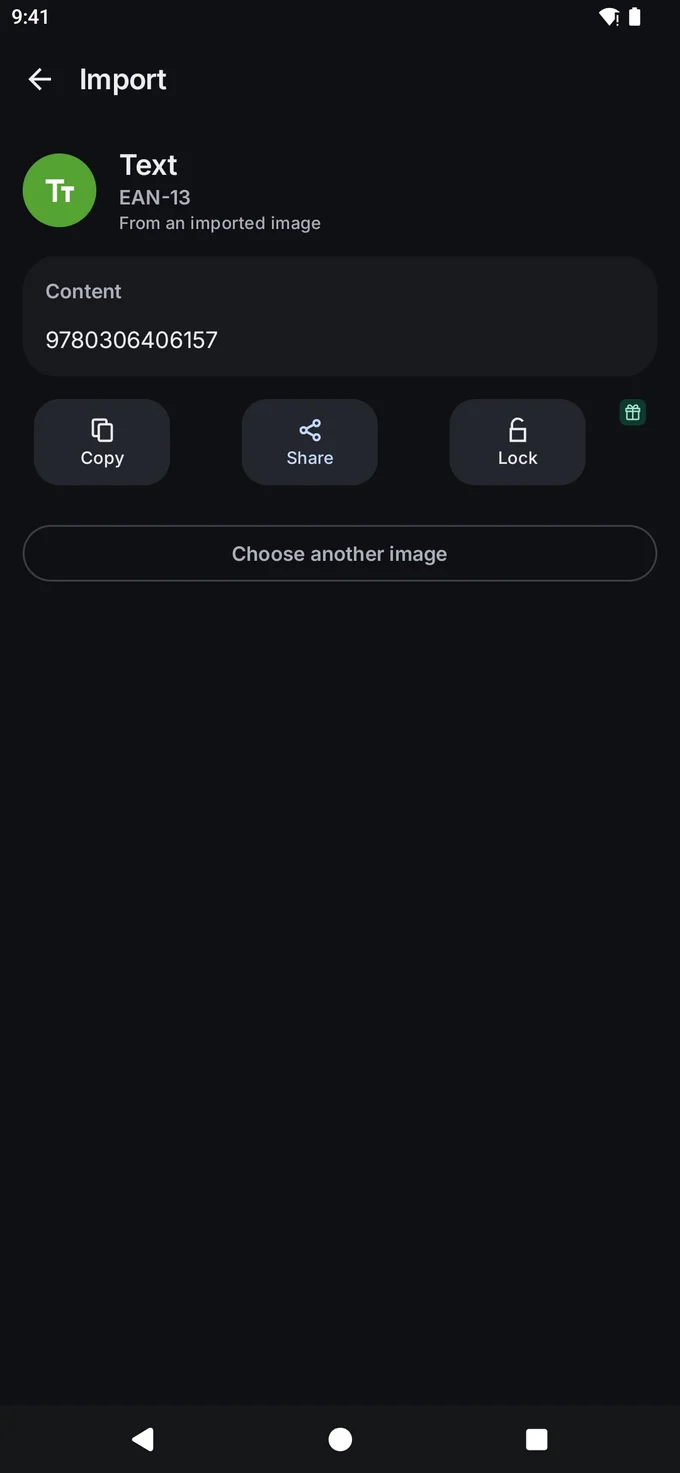
- Copy the number to search for it or paste it into another app, or Share it. The scan is also kept in your on-device History unless you’ve turned that off.
If the barcode is in a photo or screenshot, tap Gallery and choose the image instead.
What the number tells you
| Barcode | Where you’ll see it | What the number is |
|---|---|---|
| EAN-13 | Products worldwide | A 13-digit product number issued through GS1 |
| UPC-A | Products in North America | A 12-digit product number, also from GS1 |
| EAN-13 starting 978 or 979 | Books | The book’s ISBN |
| Code 128, Code 39 | Parcels, stock, asset tags | Whatever the company chose: a tracking or stock number |
| ITF-14 | Outer cartons | The number for a case of products |
| Data Matrix, PDF417, Aztec | Medicines, boarding passes, tickets | Varies; often several fields of data |
The first digits of an EAN-13 show which national GS1 organization issued the number, not where the product was made. Numbers from GS1 India usually begin with 890.
Finding a product from its barcode
Copy the number and search for it in a web browser or a shopping app. Google Lens can also search for a product from a photo. Results depend on whether the number is listed in public databases; small local brands often aren’t.
Other ways to scan a barcode
- Your camera app or Google Lens. Many Android camera apps and Google Lens read barcodes and can search for the product online. They don’t always keep a history.
- Shopping apps. Some store apps have a built-in scanner that shows the price in that store.
- Library and inventory apps. Book-cataloguing and stock apps scan ISBNs and stock codes straight into their own lists.
Troubleshooting
- The barcode won’t read. Turn the phone so the bars run across the frame, and fill about two-thirds of the width with the barcode.
- It’s blurry. Move back a little and zoom in, so the camera can focus.
- Shiny packaging reflects light. Tilt the pack slightly or turn off the flashlight.
- The barcode is on a curved bottle or can. Rotate it so the bars run vertically along the curve, not around it.
- It’s damaged or partly torn. Linear barcodes have a check digit that catches misreads, but they can’t rebuild missing bars. Try scanning another copy, or type the number printed below the bars.
- Red or light-colored bars. Some color combinations are hard for scanners to read. See QR code not scanning? Fixes that work for more fixes that apply to barcodes too.
Tips
- Check the digits under the bars. If a scan looks wrong, compare it with the printed number.
- Scan from a screen. Barcodes on another phone’s screen work too; turn up that screen’s brightness.
- Save what you’ll need again. Loyalty cards and stock numbers are easy to find later in History.
Related guides
- QR code vs barcode: what’s the difference?
- Types of barcodes: 1D and 2D explained
- How to scan a QR code on Android
Browse all QR code guides.