How to scan a QR code on Android
Scan a QR code on any Android phone with the camera, the Quick Settings tile, Google Lens, or a scanner app. Steps for each, and what to do if nothing happens.
To scan a QR code on Android, open your camera app and point it at the code for a second or two. A link or a button appears; tap it to open the content. If your camera doesn’t react, use the Scan QR code tile in Quick Settings, Google Lens, or a QR scanner app such as EveryQR.
Which built-in options you have depends on your phone maker and Android version. One of the methods below will work on any Android phone.
What you need: an Android phone with a working camera, and enough light to see the code.
Method 1: Scan with EveryQR
This works the same on every Android phone running Android 8.0 or later, and doesn’t need the internet.
- Install EveryQR from Google Play and open it. It opens straight to the camera scanner.
- Allow camera access when asked. You only need to do this once.
- Point the camera at the QR code, so the whole code is inside the frame.
- Hold still. The content appears as soon as the code is read.
- Read the content. For a link, check the web address, then tap Open link if you want to visit it. You can also Copy or Share it.
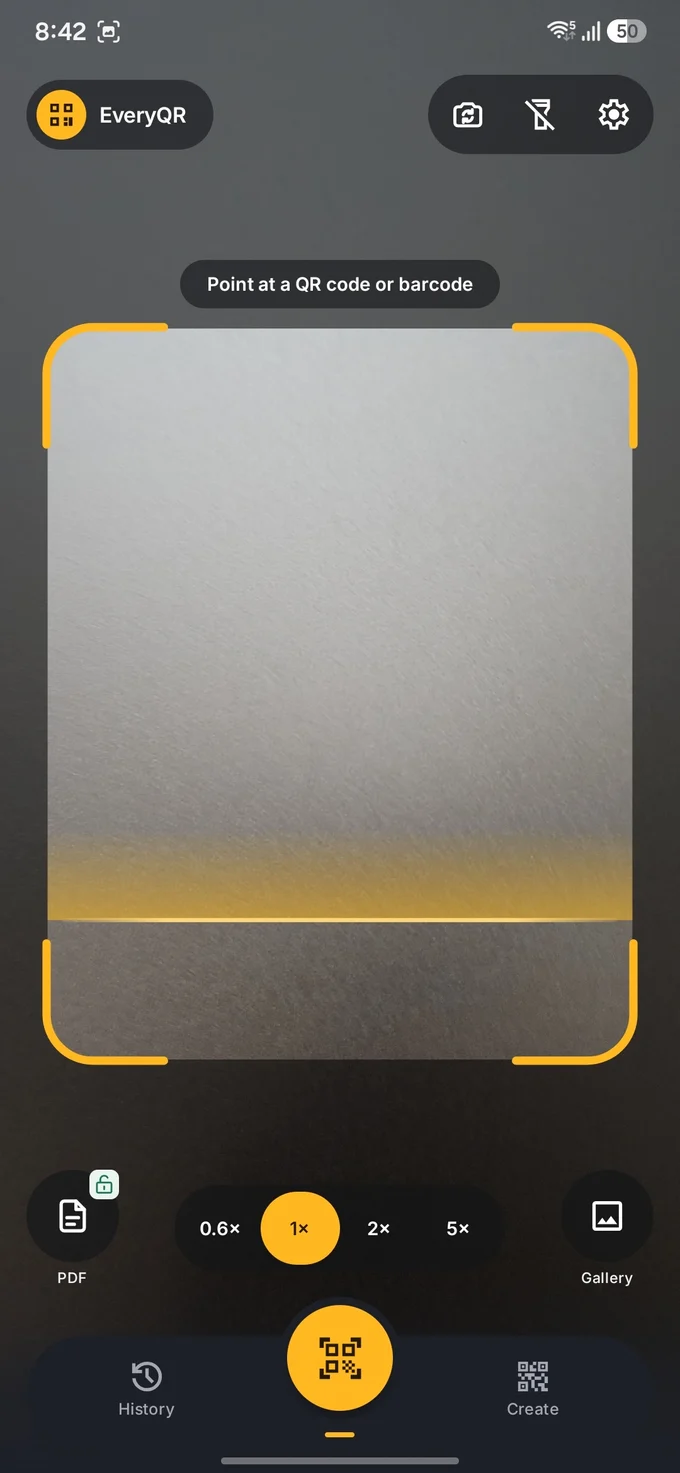
In dim light, tap the flashlight button at the top of the scanner. For a code that’s far away or small, use the zoom control instead of moving closer. EveryQR also reads common barcodes, and every scan is saved in History unless you turn off Keep history in Settings.
Method 2: Scan with your camera app
Many Android camera apps recognize QR codes automatically.
- Open the Camera app.
- Point it at the QR code and hold steady.
- Tap the link or notification that appears.
If nothing appears, QR scanning may be turned off. Open the camera’s settings and look for the scanning option. The name depends on your phone and software version:
- Samsung Galaxy: Camera settings > Scan QR codes (on recent models it’s under Scanning).
- Google Pixel: Camera settings > More settings > Camera scan suggestions (older versions call it Google Lens suggestions).
- Other phones: look for an option with “QR”, “scan”, or “Lens” in its name.
Method 3: Use the Quick Settings tile
Since Android 13, many phones, including Pixels, have a Scan QR code tile in Quick Settings. It uses Google’s built-in scanner. Some phone makers replace it with their own scanner, or don’t include it.
- Swipe down from the top of the screen twice to open Quick Settings.
- Tap Scan QR code. If you don’t see it, tap the pencil (edit) icon and drag the tile in.
- Point the camera at the code.
Method 4: Use Google Lens
- Open the Google app and tap the Lens (camera) icon in the search bar, or open the Google Lens app if you have it.
- Point the camera at the code. Lens shows the link or text it finds.
Lens can also read a code from a photo. See how to scan a QR code from a screenshot or photo.
Which method should you use?
For an occasional scan, the built-in camera or Lens is fine. A scanner app is worth installing if you scan often, want a history, need to scan from images or PDFs, or want to make your own codes. Google Lens vs a QR scanner app compares them.
Troubleshooting
- Nothing happens. Turn on QR scanning in your camera settings, or try another method above.
- The camera can’t focus. Move back a little, add light, and wipe the lens.
- It reads the wrong code. Move closer, so only one code is in view.
- The scanner shows a black screen. The app may not have camera permission. Open your phone’s Settings > Apps, choose the app, tap Permissions, and allow Camera.
More fixes are in QR code not scanning? Fixes that work.
Tips
- Read before you open. A QR code can lead to any website. Check the address, especially before you log in or pay. Fake login pages behind QR codes are a known scam; see QR code phishing. How to check a QR code before you open it shows what to look for.
- The code is on your own phone’s screen? See how to scan a QR code that’s on your own screen.
- The code is in a PDF? See how to scan a QR code in a PDF.
Browse all QR code guides.