How to scan a QR code from a screenshot or photo
Scan a QR code saved in your gallery or sent on WhatsApp, without a second phone. Step-by-step with EveryQR, plus Google Lens and other built-in options.
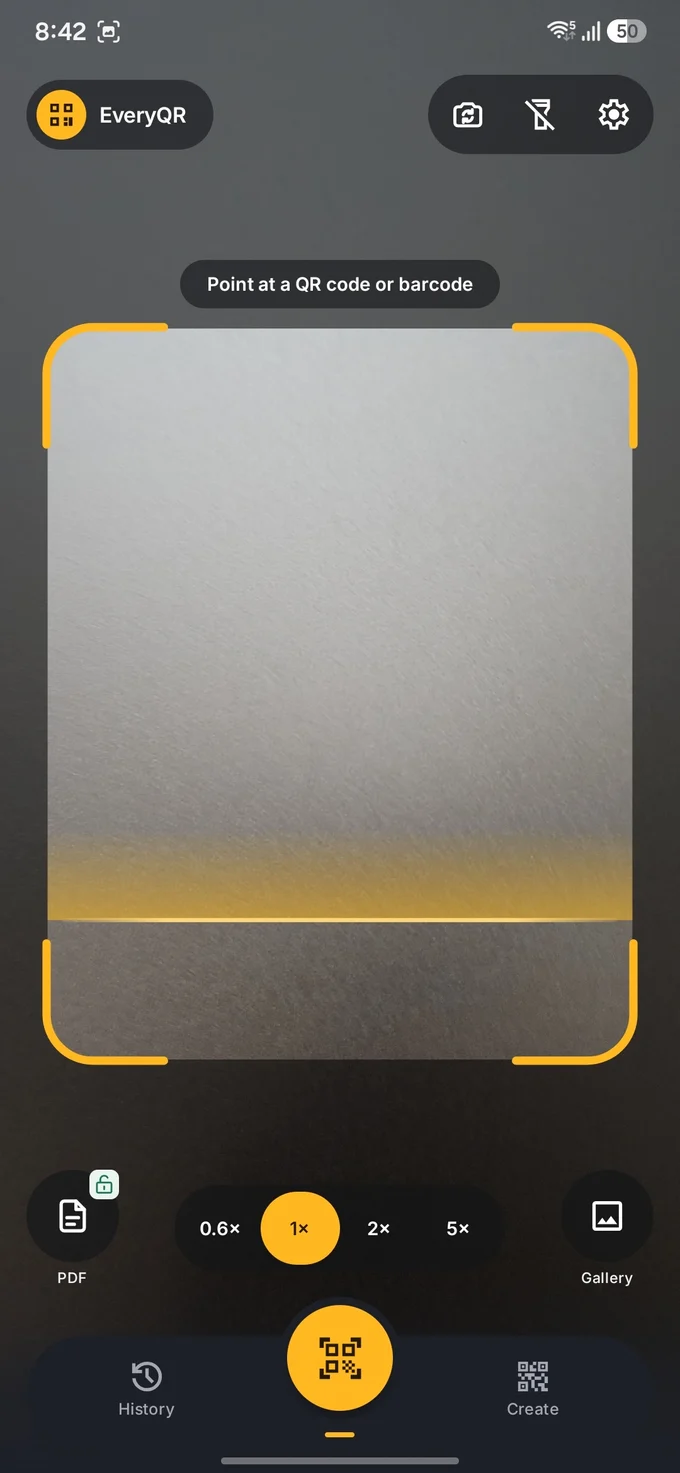
To scan a QR code from a screenshot or photo, open a QR scanner that can read images, choose the picture from your gallery, and the app reads the code from the image. You don’t need a second phone or a printout. In EveryQR, that’s two taps: Gallery, then the image.
This works for codes people send you on WhatsApp or email, codes saved from a website, and screenshots of a code that’s on your own screen.
What you need: an Android phone with EveryQR installed and the image saved on the phone. No internet connection is needed to read the code.
How to scan a QR code from an image with EveryQR
- Open EveryQR. It opens on the camera scanner.
- Tap Gallery at the bottom of the screen.
- Pick the screenshot or photo that contains the QR code.
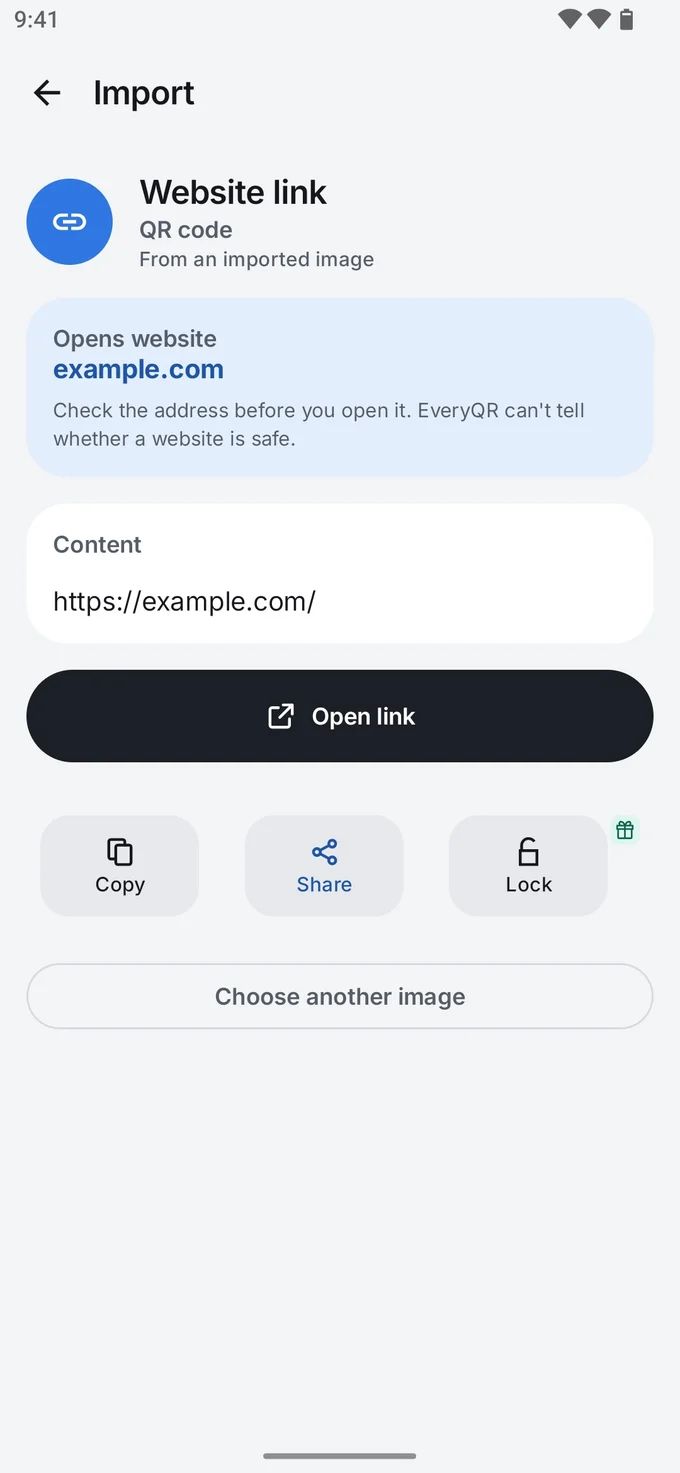
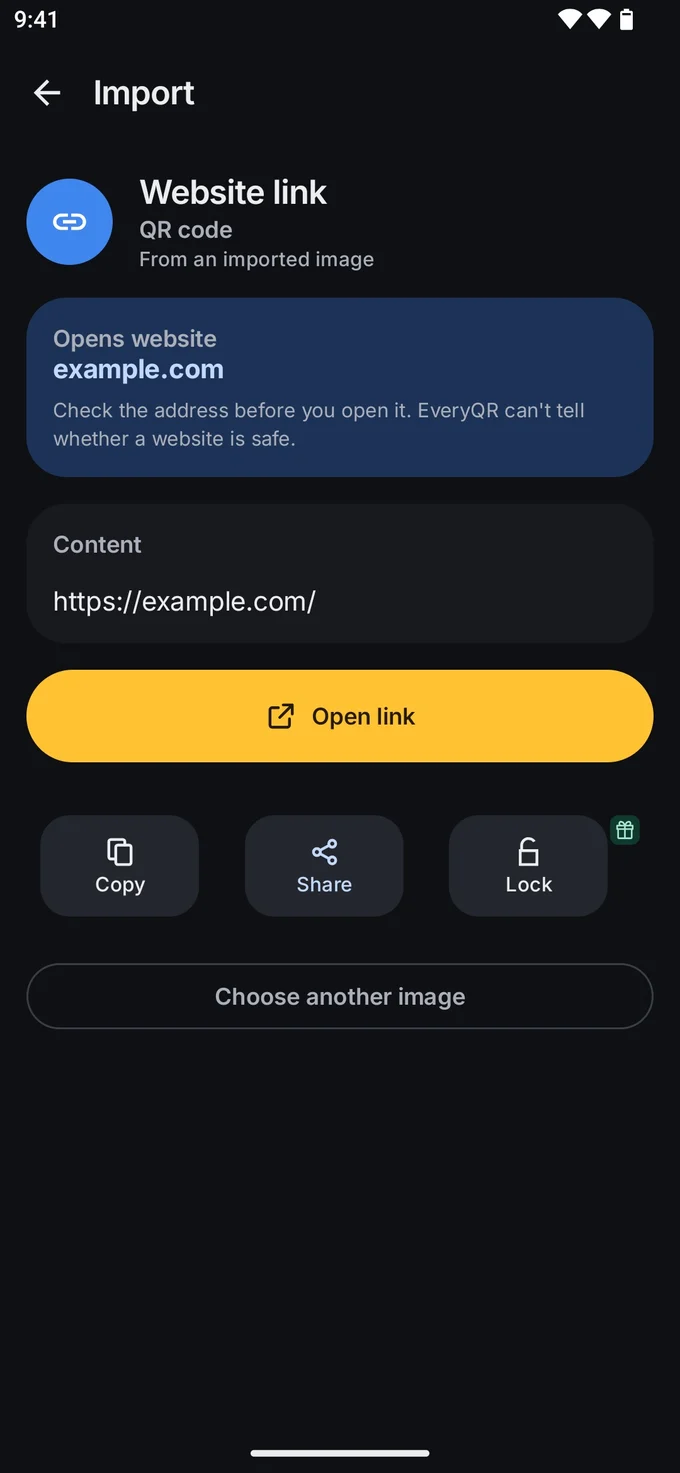
- Wait a moment while the image is read. If there’s one code, its content appears right away.
- Check what the code contains. For a link, look at the web address before you tap Open link. You can also Copy or Share the result.
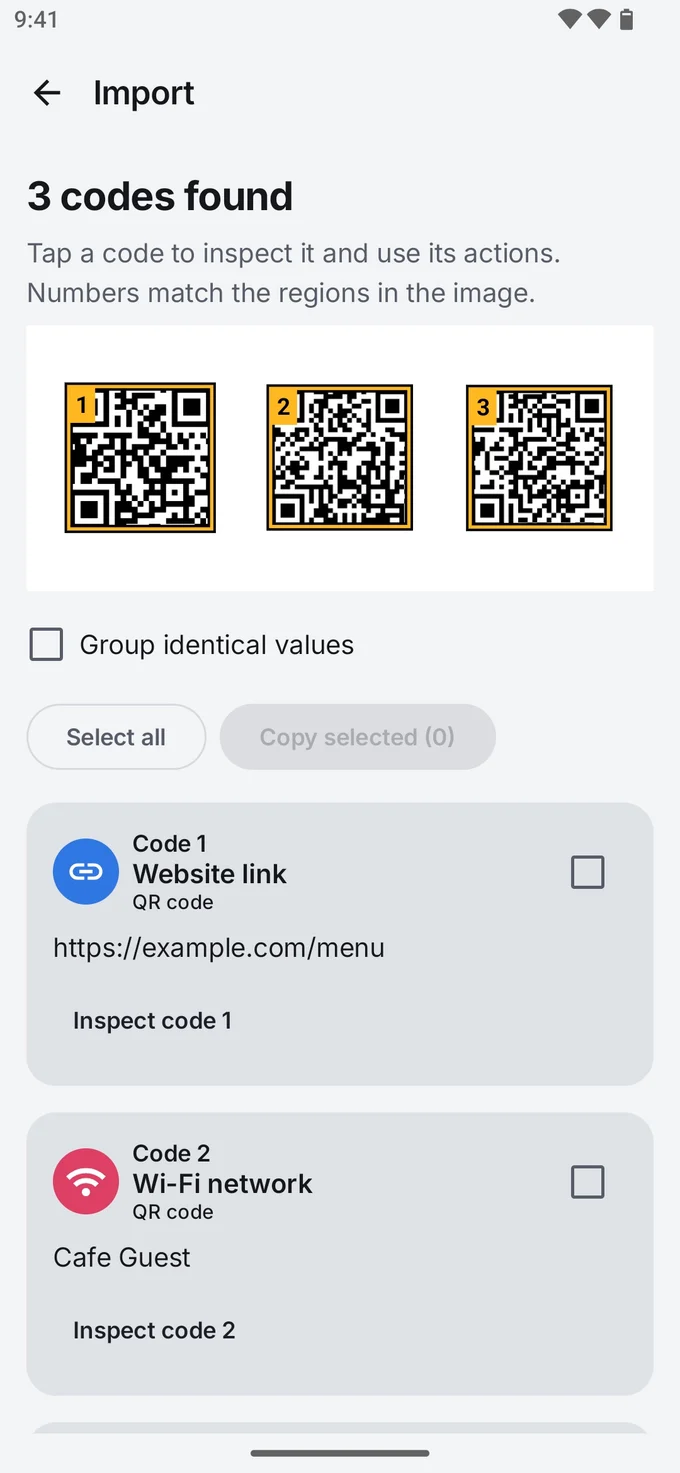
If the image contains several codes, EveryQR lists each one it finds, so you can inspect them one at a time. This helps with event passes, product labels, or a page of codes.
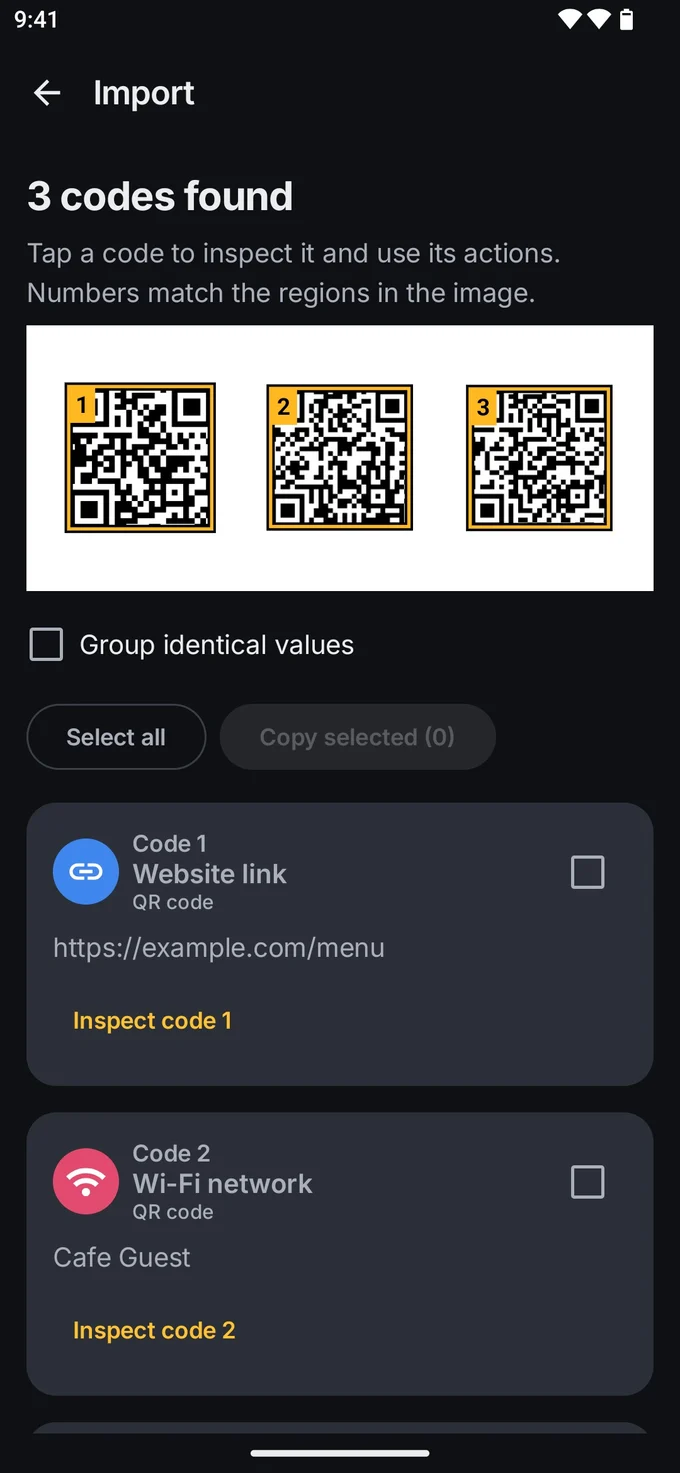
Share an image straight to EveryQR
If the picture is open in another app, such as your gallery, a files app, or a chat, you don’t need to save it first. Tap Share, choose EveryQR, and the app reads the code from the shared image.
Other ways to scan a QR code from a photo
You may already have a tool that can do this:
- Google Lens in Google Photos. Open the image in Google Photos and tap the Lens button below the photo. If Lens finds a QR code, it shows the link or text.
- Google Lens in the Google app. Open the Google app, tap the Lens (camera) icon in the search bar, then choose an image from your gallery.
- Your gallery app. Some phone makers build a scanner into their gallery app. The name and place differ by brand and version, so look for a Lens or scan icon while viewing the picture.
These are good choices for a one-off scan. A dedicated app helps when you scan images often, want a history of what you scanned, need to read several codes in one picture, or want to work offline. The comparison of Google Lens and QR scanner apps covers the differences.
Troubleshooting: “No QR code found”
If the app can’t find a code in your image, try these in order:
- Crop the image so the code fills more of it. Very small codes in large photos are harder to read.
- Check the whole code is visible. All three large corner squares need to be in the picture, along with a little blank space around the edge.
- Use a sharper copy. Photos forwarded several times on messaging apps get compressed. Ask the sender for the original, or for the link itself.
- Avoid glare and angles. If you photographed a printed code, take a new photo straight on, without reflections.
- Is it a QR code at all? Some codes look similar but use another format, such as Data Matrix. EveryQR reads common barcode formats too, but very damaged or partial codes may still fail.
More fixes are in QR code not scanning? Fixes that work.
Tips
- Check before you open. A code can lead anywhere. Look at the web address in the result, especially for payment or login pages. How to check a QR code before you open it shows what to look for.
- The code is on your own screen? Take a screenshot first, then follow the steps above. Scanning a code on the same phone has the full method.
- The code is in a PDF? See how to scan a QR code in a PDF.
Want to see every guide on scanning, creating, and safety? Browse all QR code guides.