Google Lens vs a QR scanner app: when do you need one?
Google Lens and your camera scan most QR codes for free. When that's enough, and when a scanner app helps: PDFs, history, offline use, and creating codes.
For scanning the occasional QR code, you don’t need a separate app. Google Lens and the camera on most Android phones read QR codes for free. A dedicated QR scanner app is worth it if you scan often and want a history of what you scanned, need to read several codes in one image or codes in PDFs, want scanning that works offline, or want to create your own codes.
Disclosure: I make EveryQR, a QR scanner and creator for Android. I’ve tried to be fair about when you don’t need an app like mine.
The questions that decide it
- How often do you scan? Once a week at a restaurant, or many times a day at work?
- Where are your codes? In front of you, in screenshots, or inside PDFs?
- Do you need a record? Do you ever need to find a code you scanned last week?
- Do you need to make codes, not just read them?
- Do you care where scanning happens? On your phone, or through an online service?
What Google Lens and your camera do well
- They’re already on your phone. No install, no setup.
- They read QR codes quickly from the camera, and Lens can also read codes in photos and screenshots.
- They do more than QR codes. Lens also identifies objects, translates text, and searches what you see.
On many Android phones, you can scan from the camera app, from a Scan QR code tile in Quick Settings, or from Lens in the Google app or Google Photos. How to scan a QR code on Android shows each method. Which of these you have depends on your phone maker and Android version.
Where built-in tools fall short
- No simple scan list. If you close the result, finding that code again usually means scanning it again. Google can keep a visual search history in your Google Account, but it’s an optional account setting, not a list of the codes you scanned.
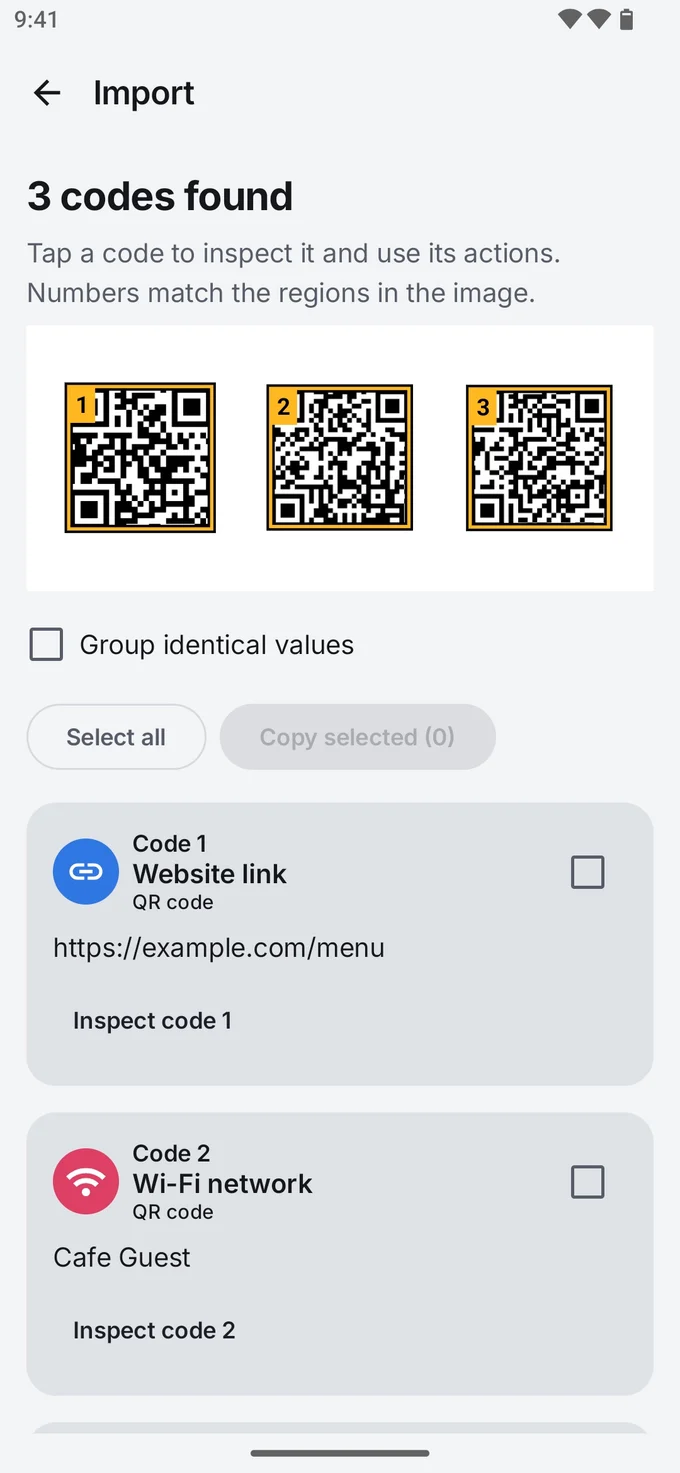
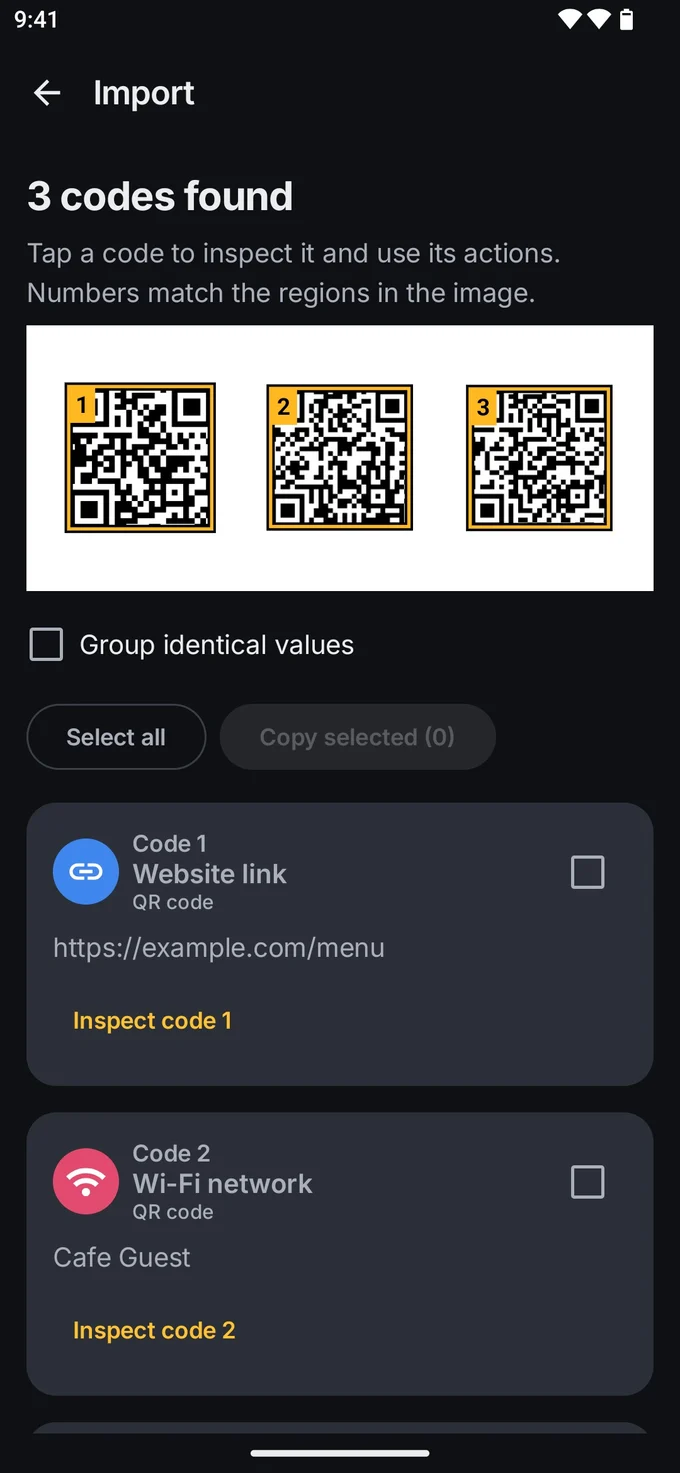
- One code at a time. Built-in tools usually pick one code from an image, even if there are several.
- PDFs. You generally have to screenshot each page first.
- Creating codes. Apart from sharing Wi-Fi and making a code for a web page in Chrome, built-in tools don’t create codes.
- Network use. Lens is a Google service. Images you search with it are processed by Google, and depending on your Google Account settings, they can be saved. Check Data & privacy in your Google Account if that matters to you.
Side by side
| Google Lens / camera | QR scanner app (such as EveryQR) | |
|---|---|---|
| Cost | Free, built in | Varies; EveryQR is free with ads, with optional Pro |
| Scan with camera | Yes | Yes |
| Scan screenshots and photos | Lens, yes | Yes |
| Several codes in one image | Usually one | EveryQR lists each code it finds |
| Codes in PDFs | Screenshot first | EveryQR Pro extracts codes from PDF pages |
| Scan history | Limited | Searchable history on your phone, which you can turn off |
| Create codes | Limited | Links, Wi-Fi, contacts, WhatsApp, and more |
| Common barcodes | Lens, yes | Yes |
| Works offline | Varies | EveryQR scanning works offline |
Built-in features differ between phone makers and Android versions, so treat the left column as typical, not guaranteed.
Which should you use?
- You scan a restaurant menu now and then: use your camera or Google Lens. No app needed.
- You often get codes as screenshots on WhatsApp or email: Lens works, and so does a scanner app that reads gallery images. See how to scan a QR code from a screenshot, or, if the code is on the same phone, how to scan a QR code that’s on your own screen.
- You handle codes for work (inventory labels, event passes, documents): a scanner app with history, multiple-code detection, and PDF support will save time. See how to scan a QR code in a PDF.
- You need to make codes for a shop, an event, or your Wi-Fi: you need a creator. See how to make a QR code for free.
- You’d rather codes are read on your phone, without an account: choose an app that scans on the device.
About EveryQR
EveryQR scans QR codes and common barcodes with the camera, from images, and (with Pro) from PDFs. It finds several codes in one picture, keeps a searchable history you can turn off, and creates codes with a design studio. Scanning, creation, and history work offline on your phone, and no account is needed. The free version shows ads; Pro removes them and adds extra features.
Whichever you choose, read the link before you open it. How to check a QR code before you open it explains what to look for.