How to make a QR code for free, with no sign-up
Make a QR code for a link, text, Wi-Fi, or contact for free on your phone, with no account. Steps, file formats for printing, and the free-trial trap to avoid.
You can make a QR code for free, with no sign-up, using a QR code app on your phone. Choose what the code should do (open a link, share Wi-Fi, show text, or save a contact), enter the details, and export the code as an image. With EveryQR on Android, the whole thing takes under a minute and works offline.
The code you make this way is a static QR code: the link or text is stored in the code itself. It keeps working as long as that information is still valid, for example while the website is online. No account or subscription is needed to keep it working.
What you need: an Android phone and the content for the code, such as a web address.
How to make a QR code with EveryQR
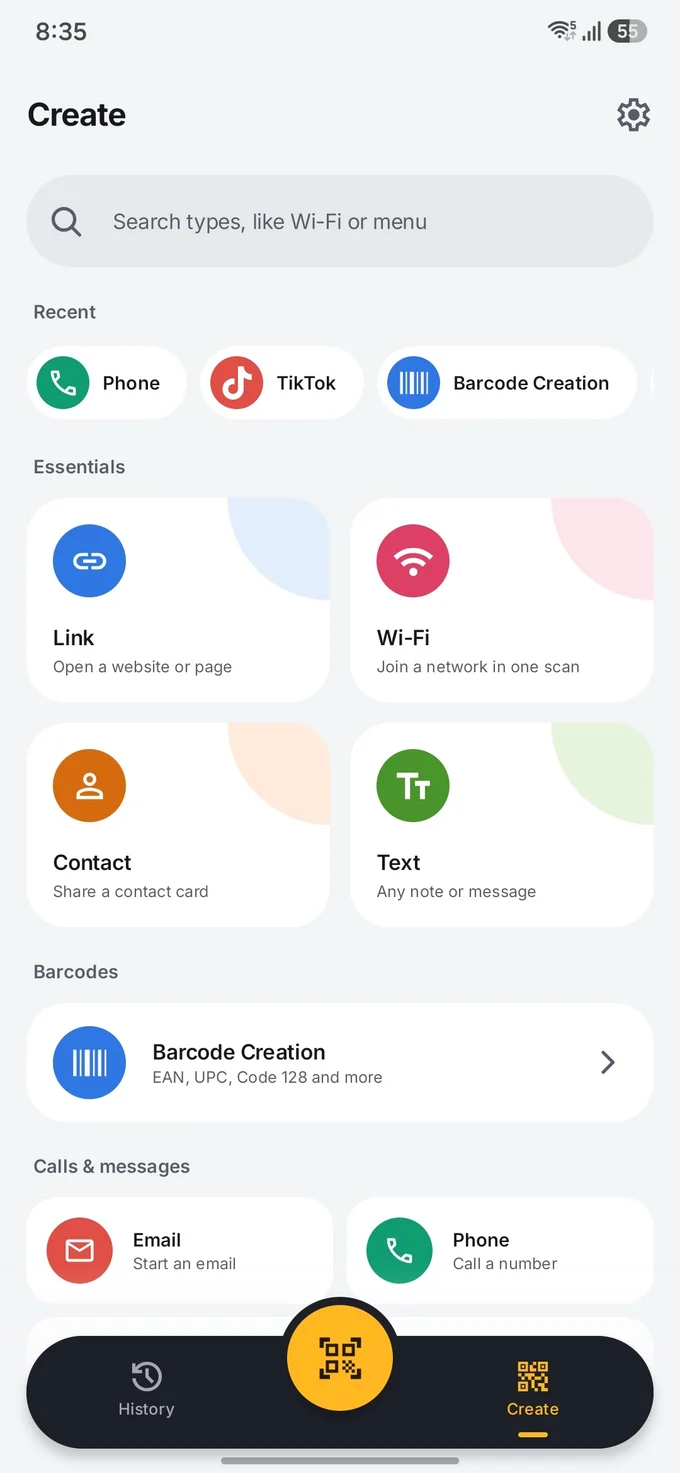
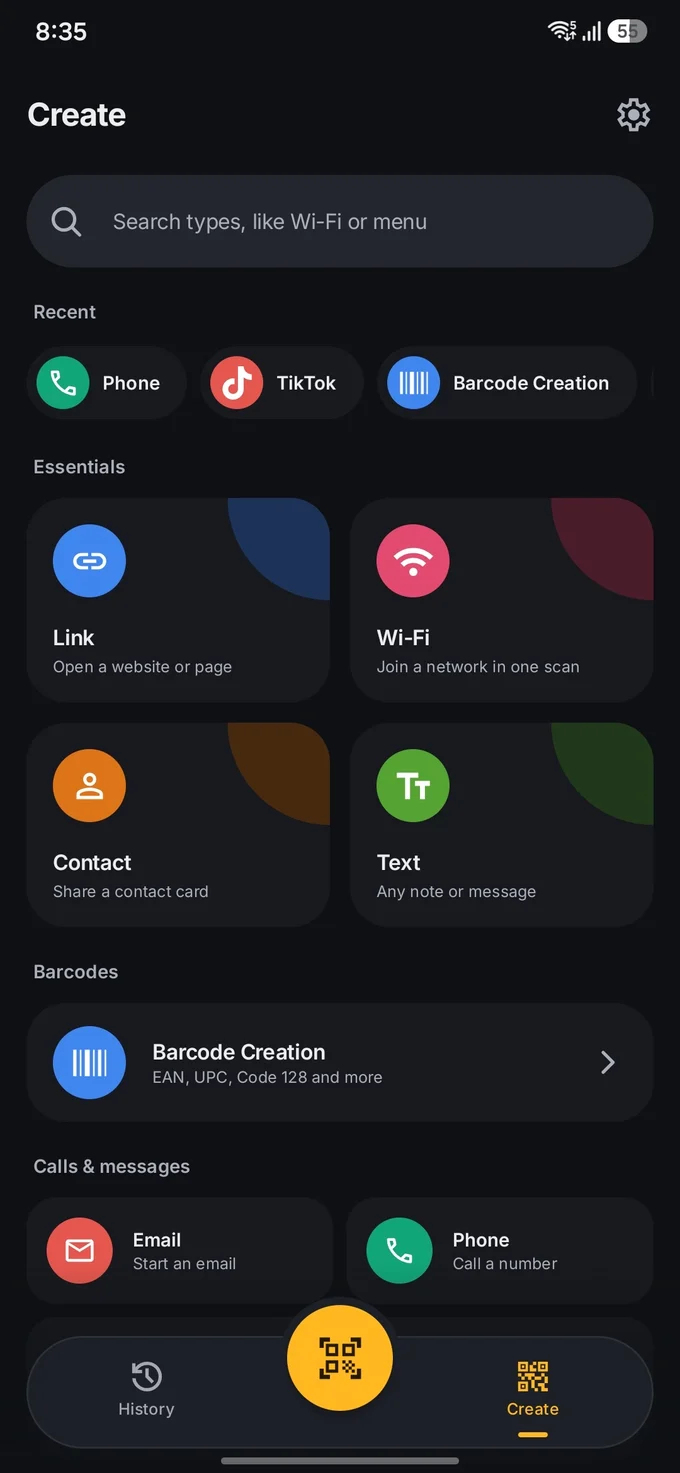
- Open EveryQR and tap Create at the bottom of the screen.
- Choose the type of code. Link opens a website. Text shows a note. Wi-Fi lets people join your network. Contact saves your details. You can also search for a type, such as “menu”.
- Fill in the details. For a link, paste the full web address, including
https://. - Tap Create QR code.
- Optionally, open the design tools to add colors, a frame, a logo, or a caption such as “Scan for our menu”. EveryQR runs a scan check so you know whether the styled code is still easy to read.
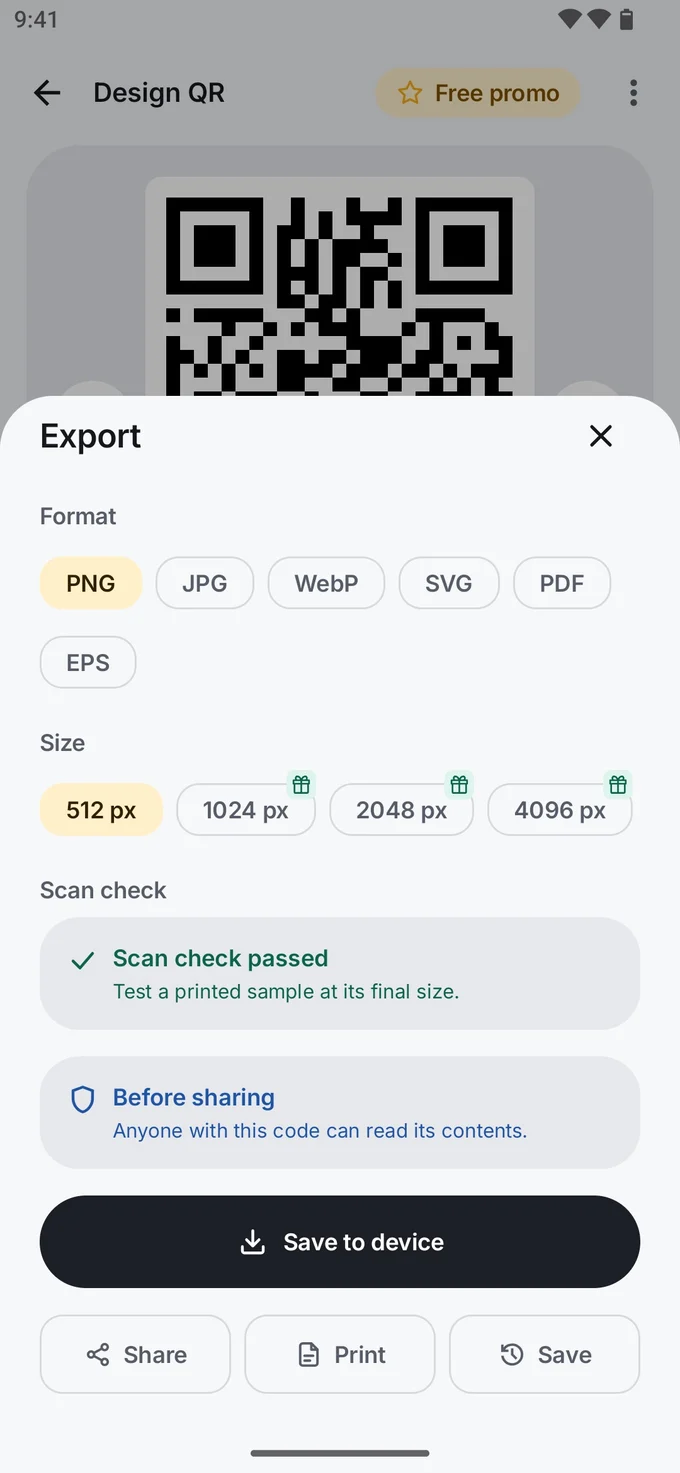
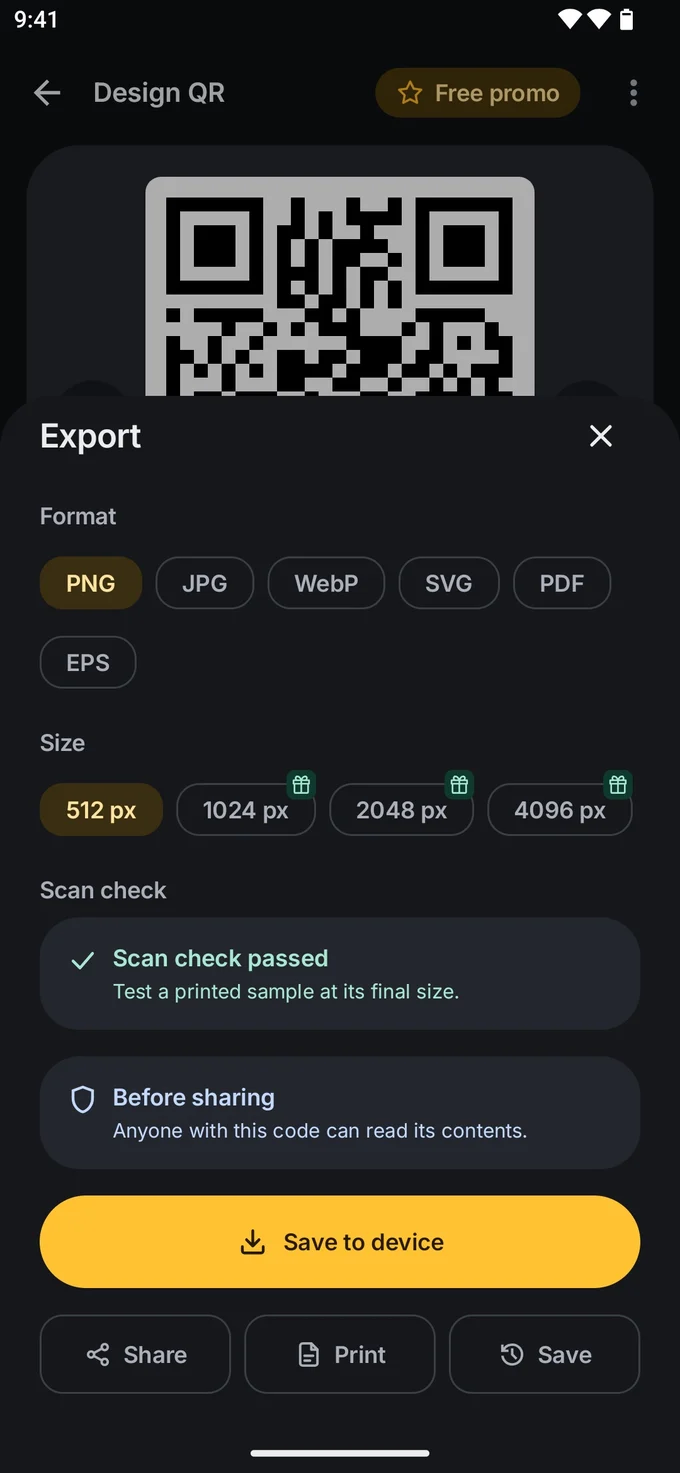
- Tap the export button and choose a format and size. PNG, JPG, WebP, and PDF are free; SVG, EPS, larger sizes, and custom print widths are part of EveryQR Pro.
- Save to device, Share, or Print.
- Scan the exported code with a different phone, or a different app, to make sure it opens what you expect.
Your codes and unfinished drafts are saved in History on your phone, so you can come back and edit them later.
Which file format should you choose?
| Use | Format | Why |
|---|---|---|
| WhatsApp, email, social media | PNG | Sharp edges, small file, works everywhere |
| Printing at any size | PDF or SVG | Vector formats stay sharp when enlarged |
| Professional print shops | PDF or EPS | Formats many printers ask for |
A PNG is made of pixels. If you enlarge a small PNG for a poster, it can blur, and blurry edges are harder to scan. For anything printed, a vector format such as PDF or SVG is safer. In EveryQR, PDF export is free. How big to print a QR code covers sizes and scanning distance.
The free-trial trap: codes that stop working
Many websites offer a “free QR code generator”. Some of them make dynamic QR codes: the code holds a short link to the website’s own server, which then forwards people to your link. That has real benefits, such as changing the destination later. But if it’s tied to a trial or subscription, the code can stop working, or show a different page, when the plan ends. That’s a problem if the code is already printed on menus or packaging. Do QR codes expire? explains which codes stop working, and why.
Before you print a code from any website, check:
- Does the code contain your link directly, or the generator’s short link? Scan it and look at the address that appears.
- Is it free forever, or free for a trial period?
- Do you need an account to keep it working?
Static and dynamic codes each have their place. Static vs dynamic QR codes explains when each makes sense.
Other free ways to make a QR code
- Chrome’s share menu. On a web page in Chrome for Android, open the menu, tap Share, then choose QR code to make a code for that page. You can download it as an image. It’s quick, but has no design options and only works for web pages.
- Android’s Wi-Fi sharing. Android can show a QR code for the Wi-Fi network you’re connected to. See how to share Wi-Fi with a QR code.
- WhatsApp’s own QR code. WhatsApp can show a code that lets people add you as a contact. For a code that opens a chat with a message already typed in, see how to make a WhatsApp QR code.
Troubleshooting
- The code opens the wrong page. Check the link for typos, and make sure it starts with
https://. - The code won’t scan after styling. Low contrast, light code colors on a light background, or a large logo can make codes hard to read. Simplify the design, and see how to add a logo without breaking the code.
- The code looks dense. The more content you put in, the more squares the code needs. Use a shorter link where you can.
Tips
- Keep the content short. Short links make simpler codes that scan from farther away.
- Add a call to action. Tell people what they’ll get: “Scan to see the menu”, not just a bare code.
- Keep dark squares on a light background. That’s the combination every scanner handles.
- Leave a margin. Keep blank space around the code; don’t crop it tight to the edges.
Browse all QR code guides for design, printing, and safety tips.