How to add a logo to a QR code without breaking it
Put your logo in a QR code and keep it scannable: why it works, how big the logo can be, what never to cover, and how to test the result before you print.
You can add a logo to a QR code because QR codes include error correction: extra data that lets a scanner rebuild the content even when part of the code is missing or covered. Place a small logo in the center, use the highest error correction level, keep the three large corner squares and the blank margin clear, and test the result on several phones before printing.
Get those right and a branded code scans as reliably as a plain one. Get them wrong and the code may work on your phone but fail on your customers’.
Why a QR code still works with a logo on it
Every QR code is built with one of four error correction levels, set by the QR code standard:
| Level | Approximate data that can be restored |
|---|---|
| L | 7% |
| M | 15% |
| Q | 25% |
| H | 30% |
A logo hides some of the code’s squares (called modules). The scanner treats them as damage and uses the error correction to fill them in. At level H, the code can recover roughly 30% of its data, so it can lose more modules to a logo than a code at level L.
That 30% is a ceiling, not a target. The logo isn’t the only thing that can go wrong: smudges, glare, curved surfaces, and low light all use up the same margin. Leave plenty of room.
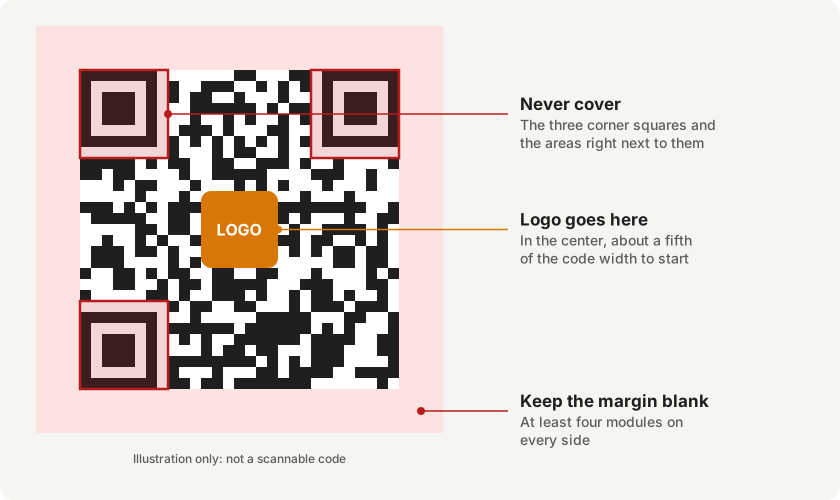
What never to cover
- The three large corner squares (finder patterns). Scanners use them to find the code and work out its angle. Cover one and many scanners won’t detect the code at all.
- The blank margin around the code (the quiet zone). It separates the code from its surroundings. The standard calls for a margin four modules wide.
- The strips right next to the corner squares. They hold small but essential details, such as which error correction level the code uses.
The center of the code is the usual place for a logo, because it holds only regular data that error correction can restore.
How to add a logo with EveryQR
- Make your code in EveryQR: tap Create, choose the type (for example Link), enter the content, and tap Create QR code.
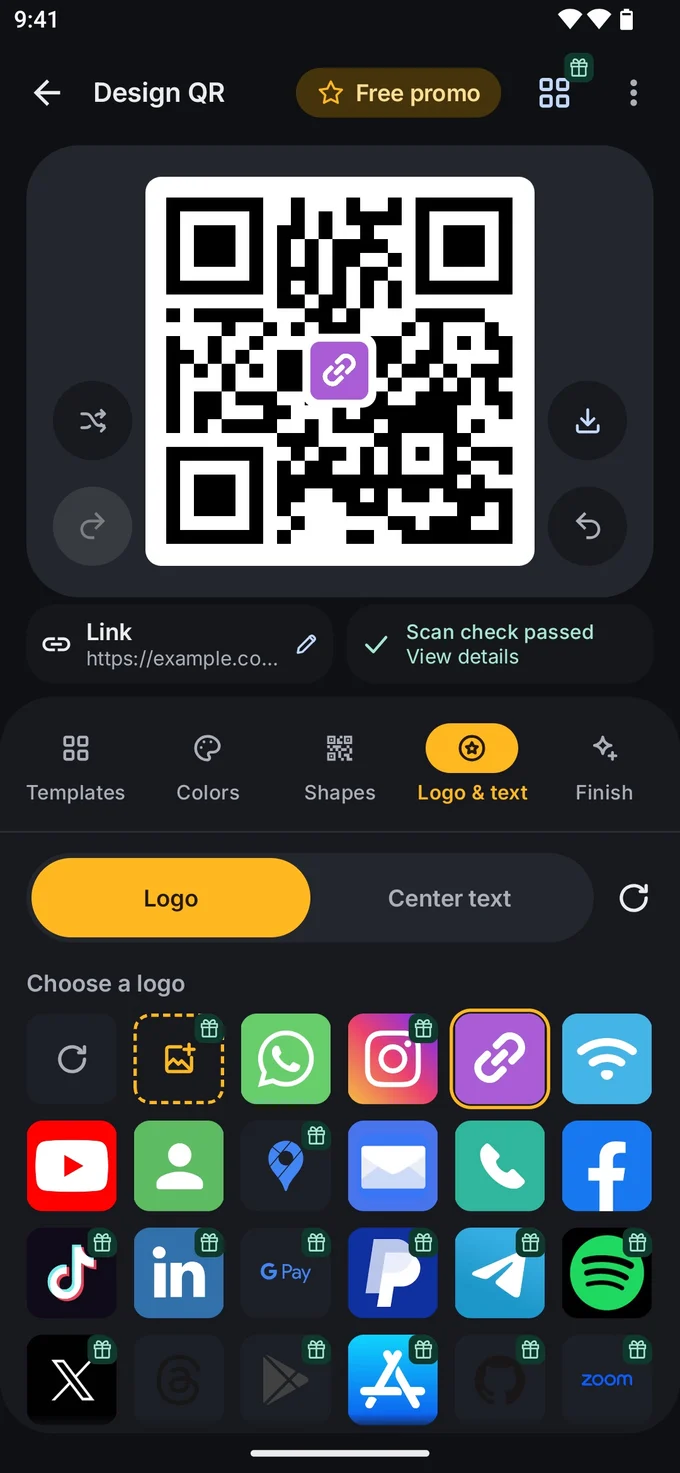
- Open the design tools and choose the Logo & text tab.
- Under Choose a logo, pick a built-in icon, or choose your own logo image from your phone.
- Keep the logo small to start with. Logo size, backing and color lets you change its size and put a plain backing behind it; you can make it bigger later and check again.
- Look at the scan check message. It tells you whether the styled code still reads, and View details explains what to change if it doesn’t.
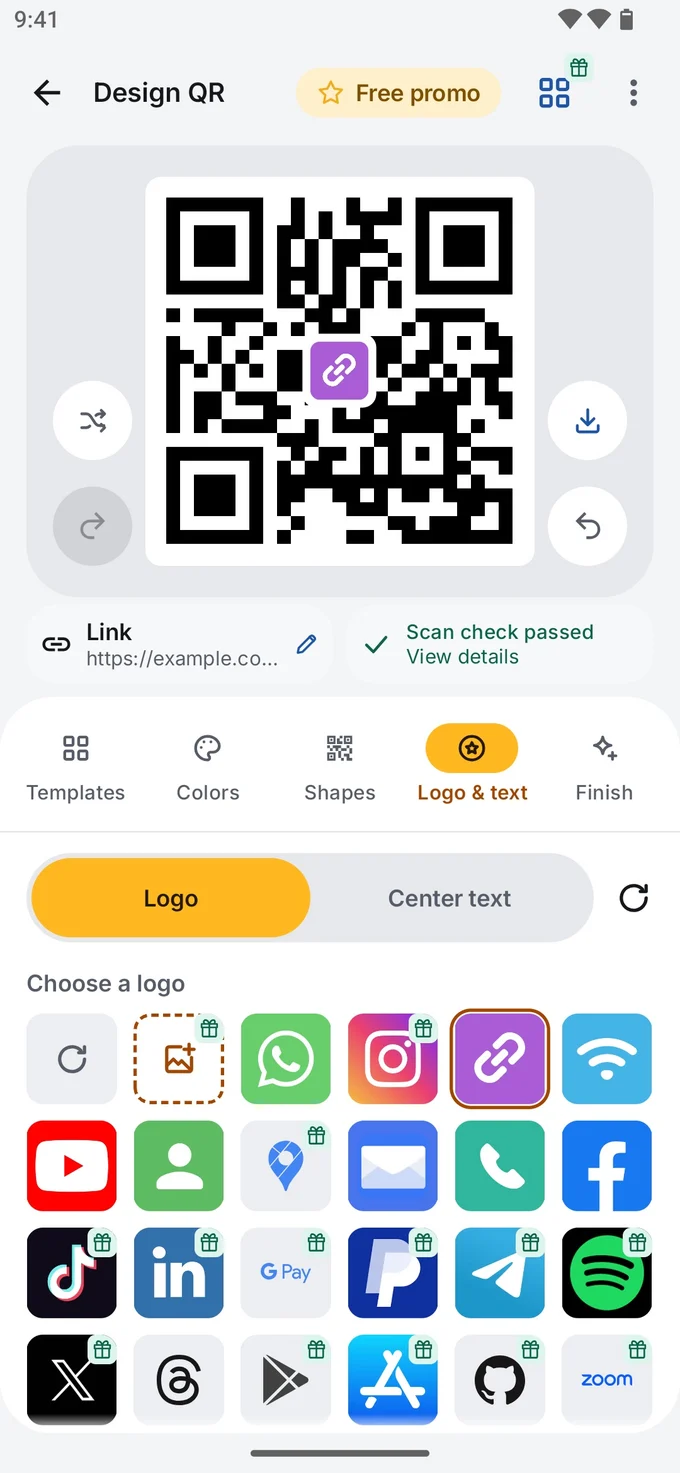
- When the check passes, export the code. Use PDF for print (or SVG, with EveryQR Pro), so the code stays sharp at any size.
When you add a logo, EveryQR removes the squares under it and raises error correction to the highest level (H) for you, so the code can still be read. It also keeps the logo to at most 30% of the code’s width.
How big can the logo be?
There’s no single safe size, because it depends on how much content the code holds and how it will be printed. A good starting point:
- Width: about a fifth of the code’s width. A logo that wide covers only about 4% of the code’s area.
- Shape: a simple, solid logo on a plain background “plate” works better than a detailed image laid over the squares.
- Content: shorter content means fewer, larger squares, which leaves more room for a logo.
Whatever size you choose, test the printed code before you print many copies, using the checklist below.
Testing checklist before you print
- Scan with at least three different phones, including an older one.
- Scan with the phone’s built-in camera, not only with the app that made the code.
- Scan from the real distance people will use, at the real printed size.
- Scan in dim light, and on the actual material if it’s glossy or curved.
- Check that the code opens the right destination.
Troubleshooting
- Scans on some phones, not others. The logo is too big, or the colors have too little contrast. Shrink the logo, or switch to dark squares on a light background.
- Won’t scan at all. Check the corner squares and the margin are fully visible and uncovered.
- Scans close up but not from a distance. Print it larger. See QR code size for printing.
More fixes are in QR code not scanning? Fixes that work.
Tips
- Contrast matters more than the logo. Dark modules on a light background are the safest choice. Light-on-dark (inverted) codes are not read by every scanner.
- Keep the content short. A long link makes a dense code with tiny squares, leaving less room for a logo. See how to make a QR code for free.
- Add words, not just a logo. A caption like “Scan to order” usually does more for scans than a bigger logo.
New to QR codes? Start with what is a QR code? or browse all QR code guides.