QR code not scanning? Fixes that work
A QR code that won't scan usually has a simple cause: light, distance, focus, glare, or the code itself. Quick fixes to try in order, on the phone and the code.
If a QR code isn’t scanning, try these fixes in order: clean your camera lens, add light, move to the right distance, hold the phone steady and straight, and avoid glare. If that doesn’t work, take a photo of the code and scan the photo. If no phone can read it, the code itself is the problem: it’s too small, too faint, damaged, or missing the blank margin around it.
Most failures are fixed by the first two or three steps.
Quick fixes on your phone
Work through these in order. Each takes a few seconds.
- Wipe the camera lens. A fingerprint smear blurs everything, and you won’t notice it on the screen.
- Add light. Turn on the flashlight in your scanner. In EveryQR, the flashlight button is at the top right of the scanner screen, next to the settings button.
- Change the distance. Too close, and the camera can’t focus; too far, and the squares are too small. Start about 15–20 cm away and move slowly closer or farther.
- Zoom in for distant or small codes instead of walking up to them. EveryQR shows zoom levels, such as 1×, 2×, and 5×, just below the scanning frame.
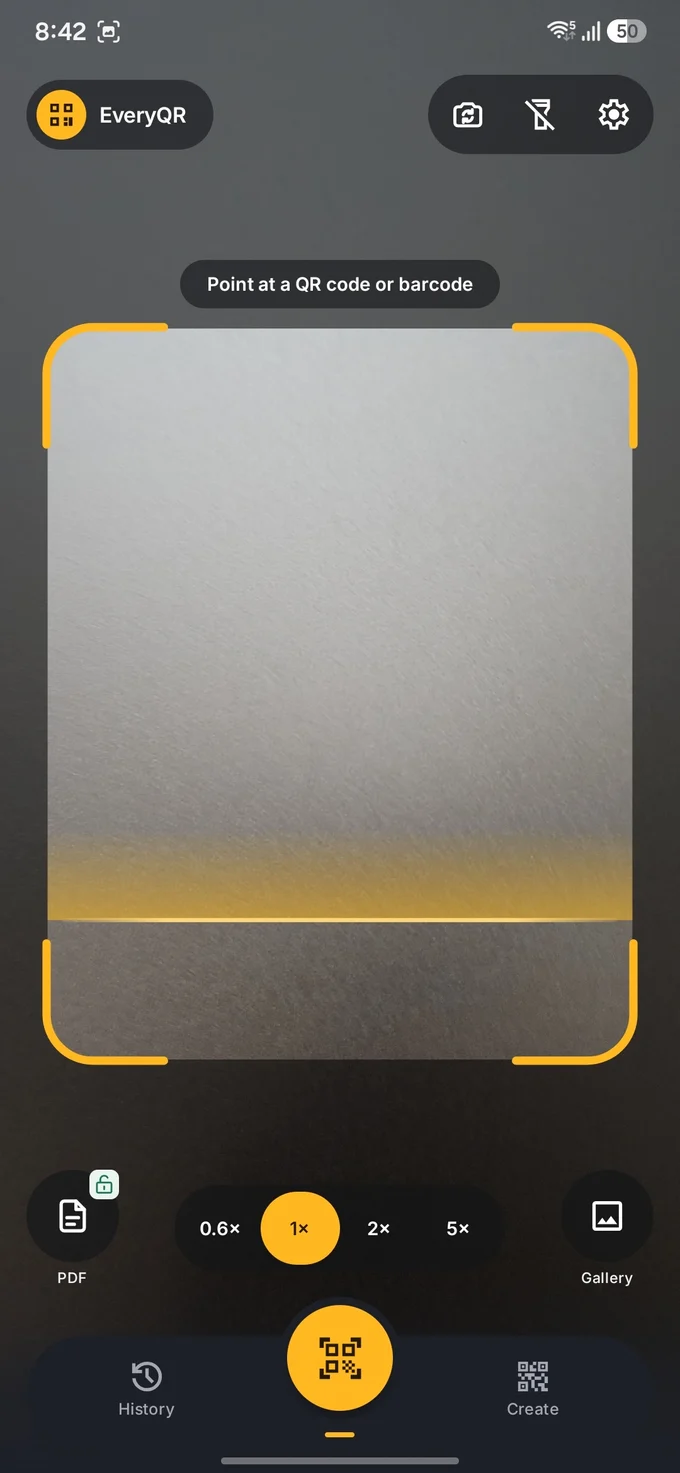
- Fit the whole code in view, including a little blank space around it. All three large corner squares must be visible.
- Hold the phone straight in front of the code, not at a steep angle.
- Avoid glare. Tilt the phone slightly, or step aside, so reflections from lights or windows don’t cross the code. Glossy menus and laminated signs are common culprits.
- Hold still for a second or two. Moving phones make blurry frames.
If it still won’t scan: take a photo
A photo gives the scanner a sharp, still image to work on.
- Take a normal photo of the code with your camera app, straight on and in good light.
- In EveryQR, tap Gallery and choose the photo.
- If needed, crop the photo first so the code fills most of it.
This also works for codes that are on your own screen; scanning a QR code from a screenshot or photo has the full steps.
Codes on screens
- Turn up the brightness on the screen showing the code.
- Step back a little. Screens can show stripes (moiré) on camera when you’re too close.
- Zoom the code on the screen if it’s tiny, for example inside a long PDF or a busy web page. For a PDF, it’s often easier to scan the PDF file directly.
- The code is on the phone you’re scanning with? A camera can’t see its own screen. Take a screenshot instead; see how to scan a QR code that’s on your own screen.
When the problem is the code
If several phones can’t read it, the code itself is the problem. Common causes:
| Problem | What you’ll notice | Fix (if it’s your code) |
|---|---|---|
| Too small | Scans only when very close, or not at all | Print it larger; see QR code size for printing |
| Low contrast | Pale colors, or light squares on a dark background | Use dark squares on a light background |
| No margin | Text or graphics touch the code’s edges | Leave a blank border at least four squares wide |
| Logo too big | Some phones read it, others don’t | Shrink the logo; see adding a logo safely |
| Damaged | Scratched, torn, faded, or folded | Ask for a new copy, or the link itself |
| Too much content | Very dense pattern of tiny squares | Use shorter content, such as a short link |
It scans, but nothing happens
Sometimes the scan works, but the result isn’t what you expected:
- The link doesn’t open. The website may be down, or the link may have ended. Some codes point to a QR service that has stopped forwarding. See do QR codes expire? and static vs dynamic QR codes.
- It shows text, not a link. Some codes just contain text, such as a serial number or a ticket ID. That’s correct.
- The camera app shows nothing. Your phone’s built-in camera may need QR scanning turned on, or may not support it. See how to scan a QR code on Android.
- It’s not a QR code. Square codes such as Data Matrix, and wide barcodes on products, need a scanner that reads those formats. EveryQR reads common barcode formats as well as QR codes.
Check the app’s camera permission
If your scanner shows a black screen, it may not have permission to use the camera. Open your phone’s Settings, go to Apps, choose the scanner app, tap Permissions, and allow Camera. The same path works on Pixel and Samsung phones. If camera access is off, EveryQR shows a Camera access is off message with the same steps.
Tips
- Ask for the link. If a code really won’t scan, ask the business or sender for the web address. It’s the same thing the code contains.
- Check before you open. A code that scans fine can still lead somewhere unsafe. See how to check a QR code before you open it.
Browse all QR code guides.