How to check a QR code before you open it
How to tell if a QR code is safe before you open it: preview the link, read the real domain, spot lookalike and hidden addresses, and check a site's reputation.
To check whether a QR code is safe, look at what it contains before you open it. Scan it with a scanner that shows the link first, then read the website’s real domain, the part just before the first single /. If the domain isn’t the organization you expect, or the code asks you to log in, pay, or install an app, stop and go to the organization’s website or app yourself instead.
A QR code can’t be checked by looking at the pattern; you have to decode it. The good news is that the checks take seconds once you know what to look for.
Why checking matters
A QR code is just a way of delivering text, usually a web address. It’s easy to print a code that leads to a fake login page or payment page, and the code itself gives no clue. Consumer protection agencies such as the US Federal Trade Commission warn that scammers hide harmful links behind QR codes on stickers, in emails, and in text messages.
Step 1: Preview the content
Use a scanner that shows the content and waits for you to choose to open it. Most phone cameras show the web address in a small banner before opening; read it rather than tapping straight away. If the code arrived as an image, scan the image instead of tapping any link next to it. See how to scan a QR code from a screenshot.
Step 2: Find the real domain
A web address looks like this:
https://www.example.co.in/offers/todayThe domain is the part between https:// and the first single /: here, www.example.co.in. The part that decides who owns the site is the end of that: example.co.in.
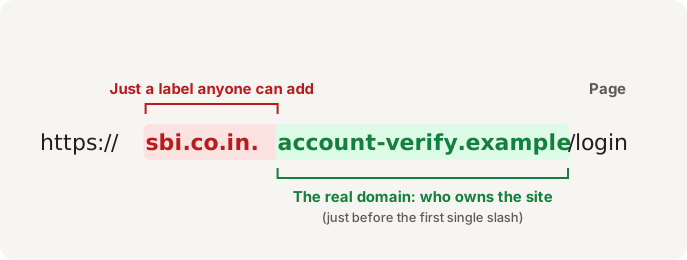
Scammers put familiar names at the start, where you look first:
https://sbi.co.in.account-verify.example/loginThis site belongs to account-verify.example, not to the bank. sbi.co.in is only a label added to the front.
Step 3: Look for tricks
- Lookalike spelling:
paytrninstead ofpaytm,amaz0nwith a zero, or extra words like-supportor-kyc. - Letters from other alphabets that look like Latin letters. Browsers may show these addresses in a coded form starting with
xn--. - An
@in the address: inhttps://[email protected]/, everything before the@is ignored, and the browser goes toanother.example. - Link shorteners: short links hide the real destination. Be extra careful with these on payment or login requests.
http://instead ofhttps://: the connection isn’t encrypted. Don’t enter any personal details.
A padlock or https:// means the connection is encrypted, not that the site is genuine. Fake sites use https:// too.
Step 4: Ask what the code wants you to do
The destination matters more than the code. Be wary when a code leads to:
- A login page. Instead, open the organization’s app or type its address yourself.
- A payment. Check the payee’s name and amount in your payment app. For UPI, never enter your PIN to receive money; see UPI QR code scams.
- An app download outside Google Play. Don’t install apps from links in QR codes.
- A request for OTPs, card details, or ID numbers. Genuine organizations don’t collect these through a QR code on a poster.
Step 5: Check the physical code
For printed codes in public places, such as parking meters, EV chargers, restaurant tables, and shop counters:
- Is the code a sticker on top of another code, or on top of the original print?
- Does it look newer, misaligned, or damaged compared with the rest of the sign?
- If in doubt, ask staff, or use the organization’s official app or website.
Step 6: Check the site’s reputation (optional)
If you’re unsure about a domain, copy the link without opening it, and check it with Google’s Safe Browsing site status tool. A clean result doesn’t prove a site is safe; new scam sites may not be listed yet.
If you’ve already opened it
- If you only opened the page, close it. Simply visiting a page rarely causes harm on an up-to-date phone.
- If you entered a password, change it now, on the real site, and turn on two-step verification.
- If you entered card or bank details, or paid, contact your bank immediately. In India, call 1930 or report at cybercrime.gov.in.
- If you installed an app from the link, uninstall it, and contact your bank if you use banking apps on the phone.
How EveryQR can help
EveryQR doesn’t open links by itself. It shows you the full decoded content first, then waits for you to choose Open link, Copy, or Share. For links, it shows the site’s real host name, shows the coded (xn--) form of addresses that use non-Latin letters, and warns you about http links and addresses with text before an @. It doesn’t give a “safe” or “unsafe” verdict; that judgment stays with you, using the checks above.
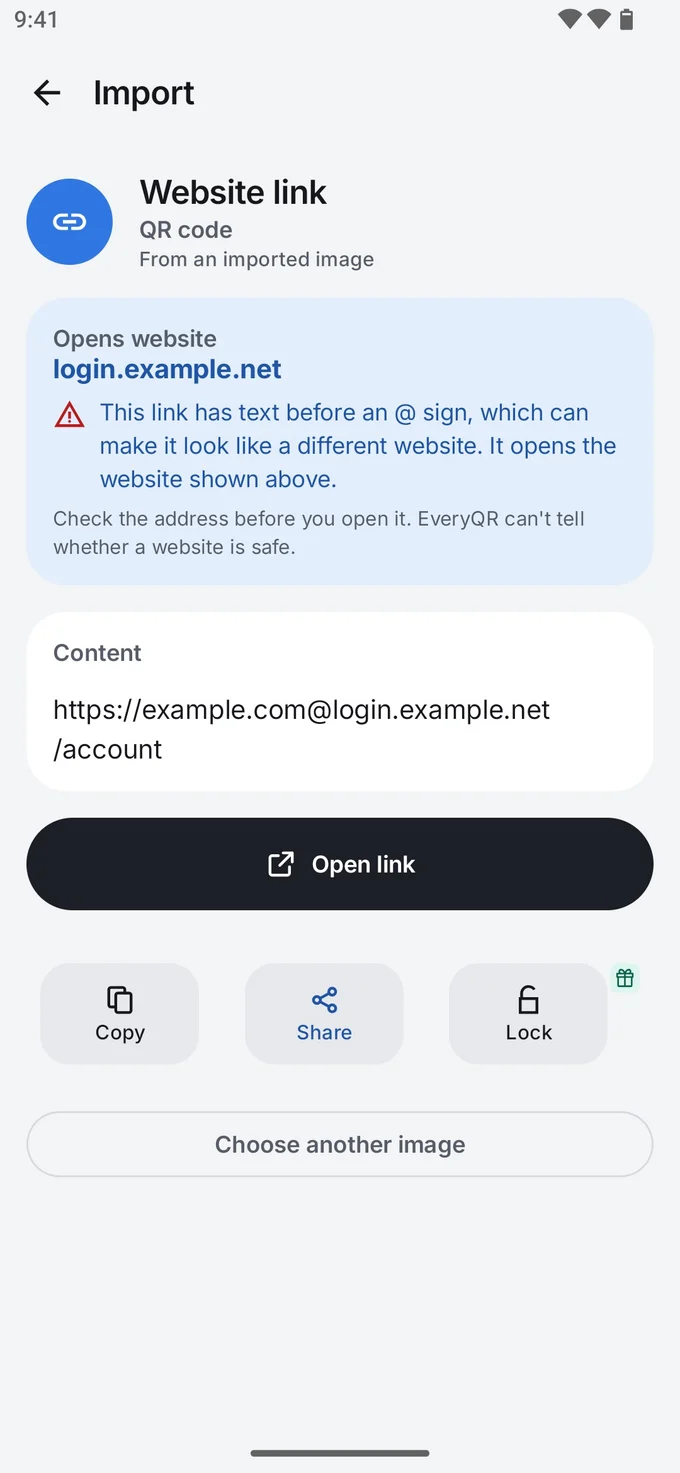
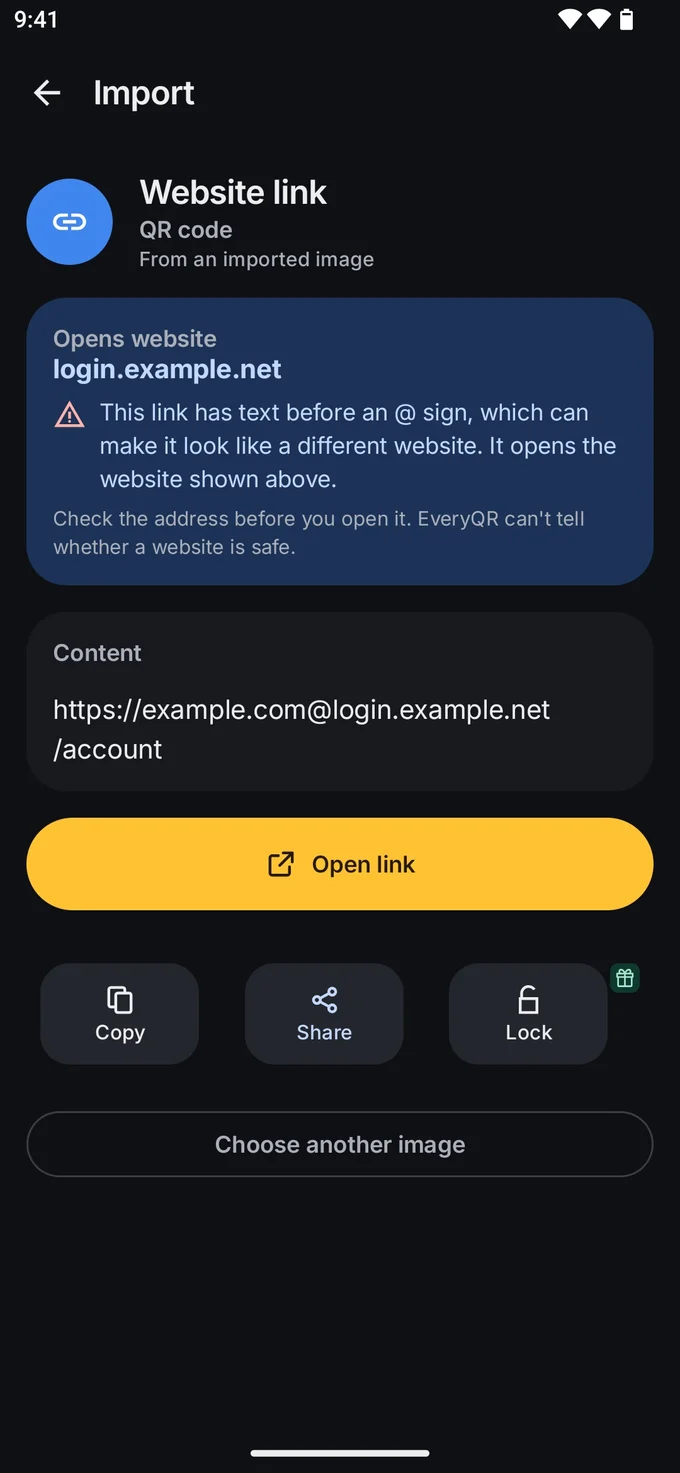
There’s one exception you control: an optional Automatically open scanned webpages setting for live camera scans. It’s off by default, shows a risk warning before you can turn it on, and never applies to links with text before an @, to imported images, or to History. If you want to check every link first, leave it off.
Because it reads images, you can also check a code someone sent you as a screenshot before you act on it.
Related guides
- QR code phishing (quishing): how to spot it
- Are QR codes safe? The real risks, explained
- Static vs dynamic QR codes
More safety guides are in QR codes, explained.