How to scan a QR code in a PDF
Read a QR code inside a PDF on your phone: screenshot the page and scan it for free, or extract every code from a long PDF with EveryQR Pro. Steps for both.
To scan a QR code in a PDF on your phone, open the PDF, zoom in on the code, take a screenshot, and scan the screenshot with an app that reads images. That works for free in any scanner that reads gallery images, including EveryQR. If the PDF has many pages or many codes, EveryQR Pro can read the PDF directly and list every code with the page it came from.
PDFs with QR codes are common: e-tickets, invoices, GST e-invoices, boarding passes, certificates, and forms.
What you need: the PDF on your phone, and a scanner app that reads images or PDFs.
Method 1: Screenshot the page (free)
Best for one code on one page.
- Open the PDF in any PDF viewer, such as your Files app, Google Drive, or your email app.
- Find the QR code and zoom in until it fills a good part of the screen.
- Take a screenshot (on most phones, Power and Volume down together).
- Open EveryQR, tap Gallery, and choose the screenshot.
- Read the result. For a link, check the address before you open it.
If one page has several codes, take one screenshot of the whole page; EveryQR lists each code it finds. The steps are the same as in how to scan a QR code that’s on your own screen.
Method 2: Extract codes from the PDF with EveryQR Pro
Best for documents with many pages or many codes, such as a batch of tickets or labels.
- Open EveryQR. On the scanner screen, tap PDF.
- Choose the PDF file.
- EveryQR goes through the document page by page. Tap Stop at any time to see the codes found so far.
- Browse the results. Each code is listed with its page number, and you can search them.
- Open, copy, or share any result, or export the list as a CSV file for a spreadsheet.
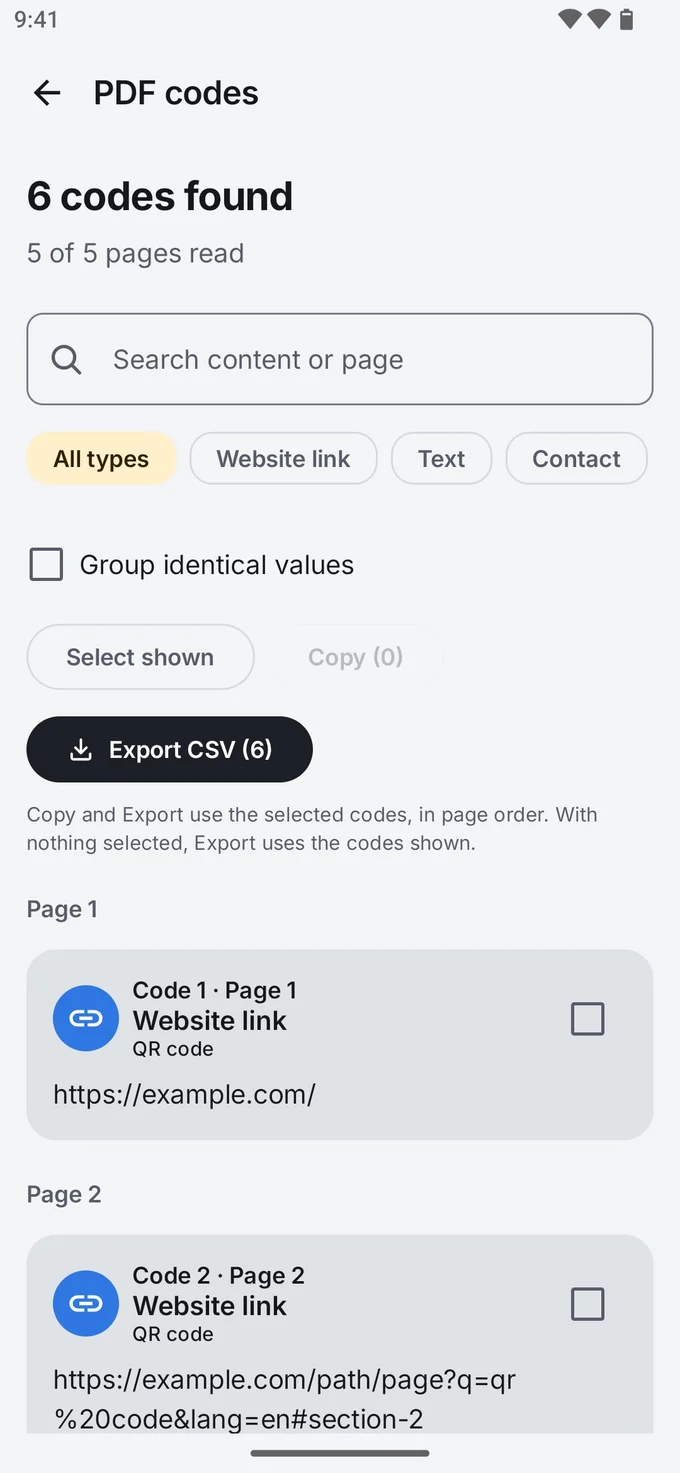
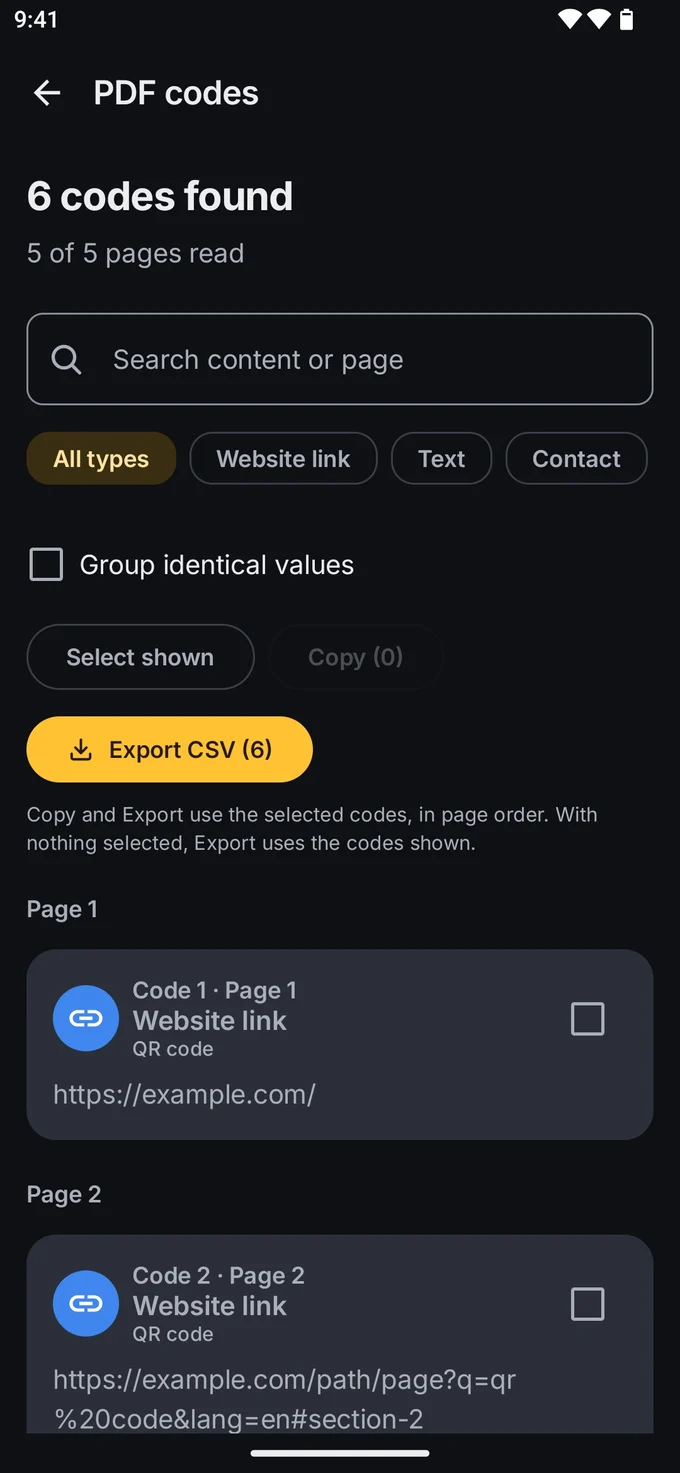
The PDF is read on your phone, offline. Reading PDFs is part of EveryQR Pro.
Other ways to scan a QR code in a PDF
- Google Lens: screenshot the page, open the screenshot in Google Photos, and tap Lens.
- Circle to Search: on supported phones, with the PDF open, touch and hold the navigation handle (or the Home button) and circle the code.
- On a computer: open the PDF on the computer screen and scan it with your phone’s camera. This is often the easiest option if you’re already at a computer.
Troubleshooting
- “No QR code found” from a screenshot. Zoom in further before taking it. A code that’s small on screen becomes a small, blurry code in the image.
- The PDF is a scan of paper. Codes in scanned documents can be faint or skewed. Zoom in and try a clearer page, or scan the original paper with the camera.
- The PDF won’t open in the app. It may be password-protected. EveryQR doesn’t unlock documents, so open it in your PDF viewer first, then use the screenshot method.
- It finds a code, but it’s not what you expected. Some documents have several codes, such as a GST invoice code and a payment code. Check each one.
More fixes are in QR code not scanning? Fixes that work.
Tips
- Use the screenshot method for one-off codes. It’s quick, and works with any scanner.
- Be careful with payment codes in PDFs that arrive unexpectedly by email. A fake invoice with a QR code is a known phishing trick.
- Delete screenshots of tickets and personal documents after scanning.
Not sure you need an app at all? Read Google Lens vs a QR scanner app, or browse all QR code guides.