How to scan a QR code that's on your own screen
A QR code on your own screen can't be pointed at the camera. Take a screenshot and scan the image, or use Circle to Search or Google Lens. Steps for each.
To scan a QR code that’s on your own phone’s screen, take a screenshot, then scan the screenshot with an app that reads images. Your camera can’t point at its own screen, but a scanner app can read the code from the saved picture. On many newer Android phones, Circle to Search can also read a code on screen without a screenshot.
This comes up all the time: a code in a WhatsApp message, an email, a website, a ticket, or a payment link opened on the same phone.
What you need: an Android phone and a QR scanner app that reads images, such as EveryQR.
Method 1: Screenshot, then scan with EveryQR
- With the QR code on your screen, take a screenshot. On most Android phones, press the Power and Volume down buttons together. Some phones also offer a gesture, such as a palm swipe or a three-finger swipe, in their settings.
- Open EveryQR. It opens on the camera scanner.
- Tap Gallery.
- Choose the screenshot. It’s usually the newest image in your gallery.
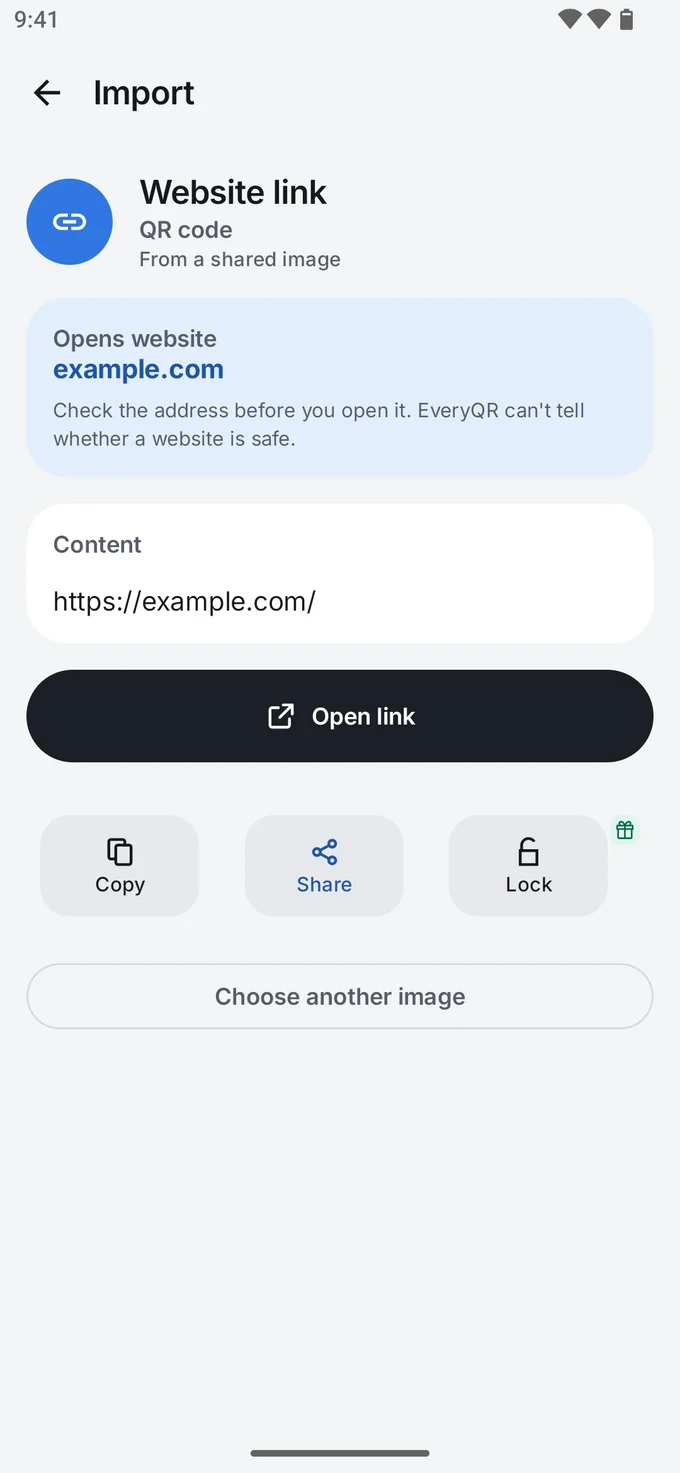
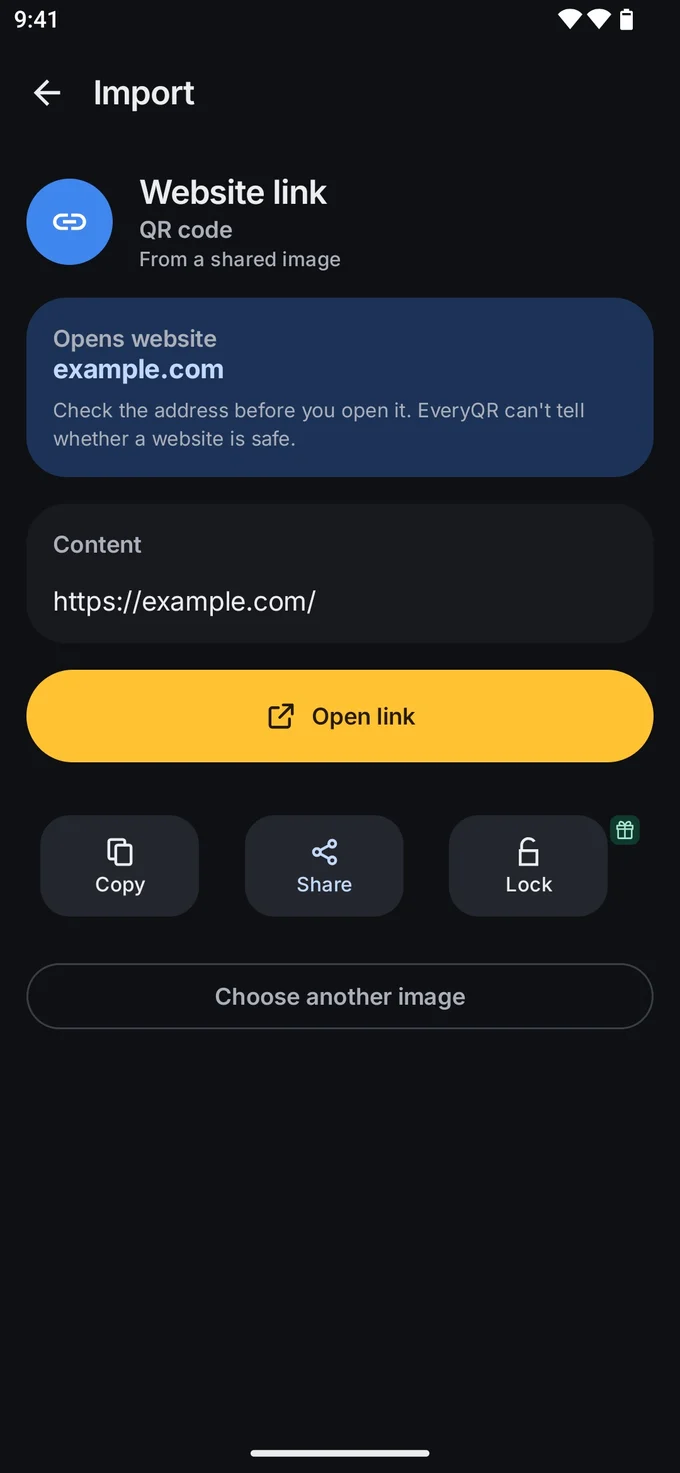
- Read the result. For a link, check the web address, then tap Open link if it’s what you expect.
If the screenshot contains more than one code, EveryQR lists each one it finds. Everything is read on your phone, without internet, and you can delete the screenshot afterwards.
Shortcut: right after taking the screenshot, tap Share on the screenshot preview (or share it from your gallery), choose EveryQR, and it reads the code straight away.
Method 2: Circle to Search
On phones that support it, Circle to Search lets you search anything on your screen. It’s available on many recent Android phones, including the Galaxy S24 and later Samsung flagships and Pixel 6 and later, but support depends on the model and software version. You may need to turn it on in Settings first.
- With the code on screen, touch and hold the navigation handle at the bottom of the screen, or the Home button if you use three-button navigation.
- Circle or tap the QR code.
- The link or text appears at the bottom. Tap it to open.
Method 3: Google Lens on a screenshot
- Take a screenshot of the code.
- Open the screenshot in Google Photos and tap Lens.
- Tap the link that appears.
Which method should you use?
- Circle to Search is fastest, if your phone has it.
- A screenshot and a scanner app works on any Android phone, works offline, and keeps a history of what you scanned.
- Lens is a good backup if you have Google Photos.
Google Lens vs a QR scanner app compares them in more detail.
Be careful with payment codes
If someone sends you a UPI QR code as an image, remember: scanning a UPI code and entering your PIN always sends money. You never need to scan a code to receive a payment. Read UPI QR code scams before you pay a code someone sent you.
Troubleshooting
- “No QR code found”. Zoom in on the code before you take the screenshot, so it’s larger and sharper, or crop the screenshot.
- Only part of the code is on screen. Scroll so the whole code, including the blank border, is visible, then take the screenshot again.
- The code is in a PDF. See how to scan a QR code in a PDF.
- The image was sent on WhatsApp and is blurry. Ask the sender for the original, or the link itself.
Tips
- Delete screenshots of private codes, such as Wi-Fi passwords or tickets, once you’ve scanned them.
- Codes in photos you saved earlier work the same way. See how to scan a QR code from a screenshot or photo.
Browse all QR code guides.