How to share your Wi-Fi password with a QR code
Make a Wi-Fi QR code so guests can join your network with one scan, without typing the password. Free steps with EveryQR, Android's built-in option, and tips.
A Wi-Fi QR code lets someone join your network by scanning a code instead of typing the password. The code holds your network name, security type, and password. When a phone scans it, the phone offers to connect. Most Android phones and iPhones can join a network from a Wi-Fi QR code with their built-in camera or scanner.
You can make one for free in a minute, print it for guests or customers, and put it on a fridge, a reception desk, or a café table.
What you need: your network name and password, exactly as set on your router, and an Android phone with EveryQR. No account or internet connection is needed to make the code.
How to make a Wi-Fi QR code with EveryQR
- Open EveryQR and tap Create at the bottom of the screen.
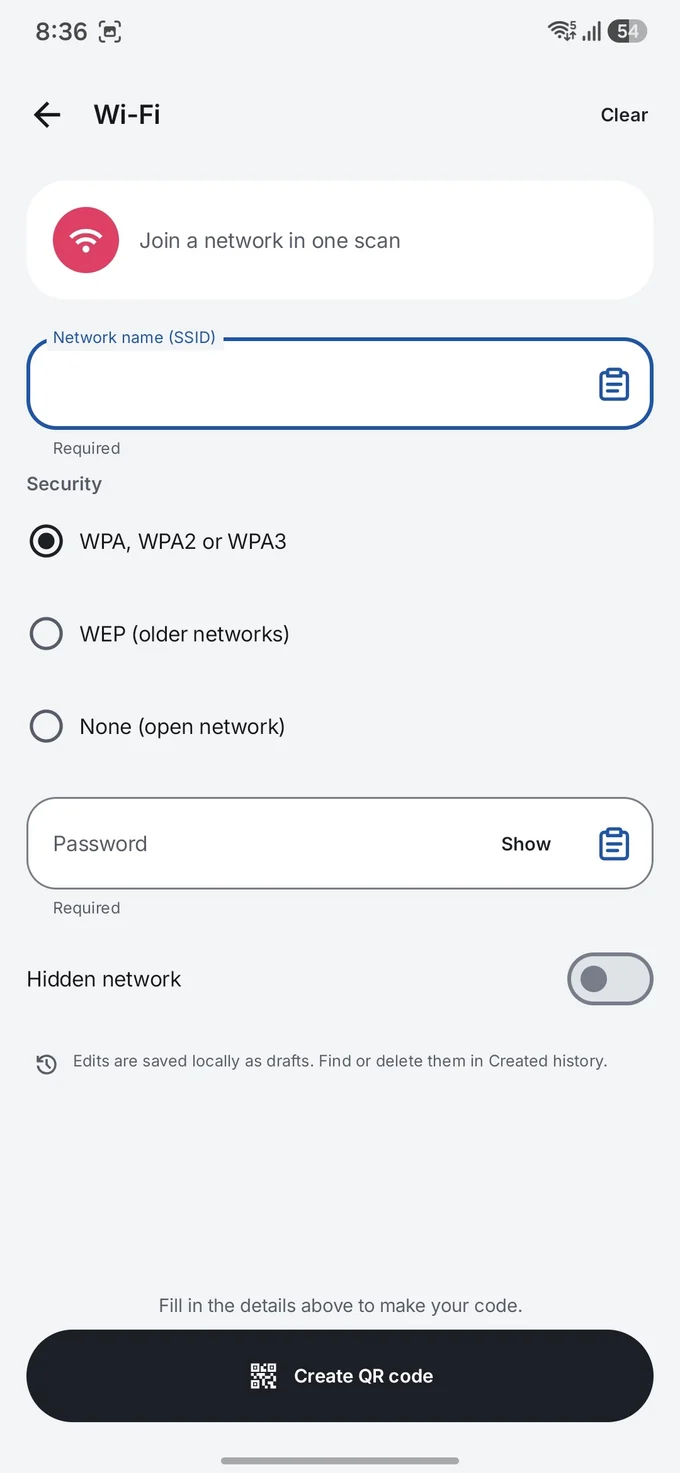
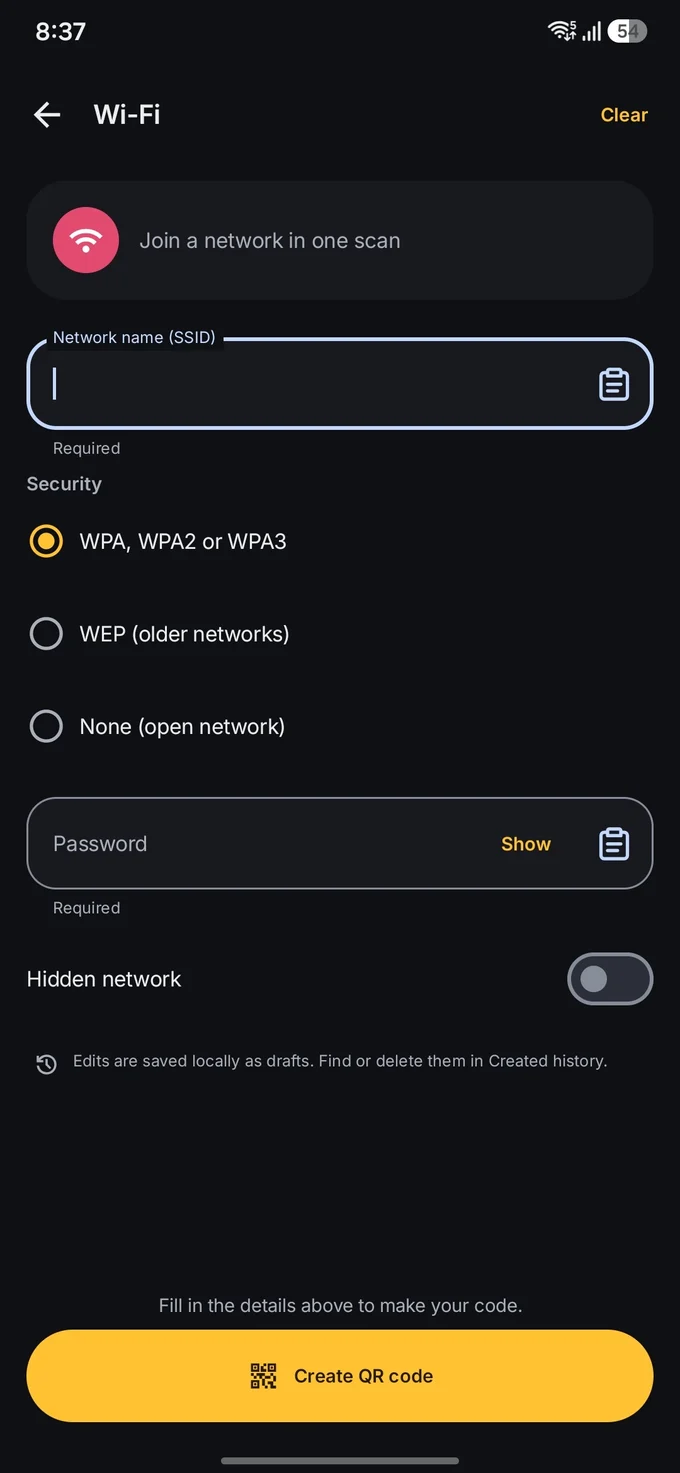
- Tap Wi-Fi.
- Type the Network name (SSID). Capital letters, spaces, and symbols must match your router exactly.
- Choose the Security type. Most home and office networks use WPA, WPA2 or WPA3. Choose None only for an open network with no password.
- Type the Password. Tap Show to check it for typos.
- Turn on Hidden network only if your router doesn’t broadcast the network name.
- Tap Create QR code.
- Optionally, style the code in Design Studio with a caption such as “Scan to join Wi-Fi”, a frame, or your colors. EveryQR checks that the styled code still scans before you export it.
- Export it as PNG for sharing or PDF for printing (SVG needs EveryQR Pro), then save, share, or print it.
Before you print, test the code: scan it with another phone that isn’t connected to your network yet, and make sure it joins.
What’s inside a Wi-Fi QR code?
A Wi-Fi QR code is ordinary text in a format that phones recognize. For a network called HomeNet with the password sunflower42, it looks like this:
WIFI:T:WPA;S:HomeNet;P:sunflower42;;T is the security type, S the network name, and P the password. An H:true part marks a hidden network. This format was popularized by the open-source ZXing barcode project, which documents it, and it’s now widely supported. The characters \, ;, ,, ", and : in a name or password have to be escaped with a backslash. A good generator does that for you; EveryQR does.
Because the password is stored as plain text, anyone who scans the code, or who has a photo of it, can read your password.
Other ways to share Wi-Fi with a QR code
- Android’s built-in option. On Android 10 and later, you can show a QR code for the network you’re connected to. You’ll be asked to unlock your phone, then the code appears on screen.
- Pixel and similar phones: Settings > Network & internet > Internet, tap the settings (gear) icon next to your network, then tap Share. On Android 14 and later, the Internet tile in Quick Settings also has a Share Wi-Fi button.
- Samsung Galaxy: Settings > Connections > Wi-Fi, tap the settings (gear) icon next to your network, then tap QR code at the bottom of the screen.
- Your router’s app. Some routers and mesh systems can show or print a Wi-Fi QR code. Check your router’s app or manual.
The built-in option is handy for showing a code on your screen right now. To print a code, add a caption, or keep it for later, an app that exports a file is easier.
Troubleshooting
- The phone says it can’t connect. The network name or password is probably wrong, often a capital letter or a trailing space. Recreate the code and test again.
- The phone doesn’t offer to join. Older phones may need a QR scanning app, or a setting turned on in the camera app. See how to scan a QR code on Android.
- It worked before but not now. The password or network name changed. A Wi-Fi QR code doesn’t update itself; make a new one.
- The printed code won’t scan. It may be too small, or the paper is glossy and reflecting light. See QR code size for printing.
Tips for guests, shops, and offices
- Use a guest network. Most routers let you create a separate guest network. Share that one, so visitors stay off the network your own devices use.
- Plan for change. A Wi-Fi QR code keeps working for as long as the network name and password stay the same, so it doesn’t expire on its own. To stop people from joining, change the password, then print a new code.
- Keep the code out of public photos. Anyone who can see the code clearly can read the password.
- Add a caption with the network name, so people know what they’re joining, and how to get help if it doesn’t work.
To make a code that opens a WhatsApp chat instead, see how to make a WhatsApp QR code. For more on the risks of scanning in general, read are QR codes safe? or browse all QR code guides.