How to make a WhatsApp QR code
Make a QR code that opens a WhatsApp chat with you, with an optional ready-to-send message. Free steps with EveryQR, WhatsApp's own code, and business tips.
A WhatsApp QR code opens a WhatsApp chat with a specific phone number when someone scans it, optionally with a message already typed in. To make one, enter the number with its country code in a QR code maker that supports WhatsApp, add a message if you like, and export the code. With EveryQR on Android, it’s free and takes about a minute.
Shops, tutors, clinics, and freelancers use these codes on counters, flyers, and business cards, so customers can message them without saving the number first.
What you need: the WhatsApp number, including its country code (for India, +91), and an Android phone.
How to make a WhatsApp QR code with EveryQR
- Open EveryQR and tap Create.
- Search for WhatsApp, or find it in the list, and tap it.
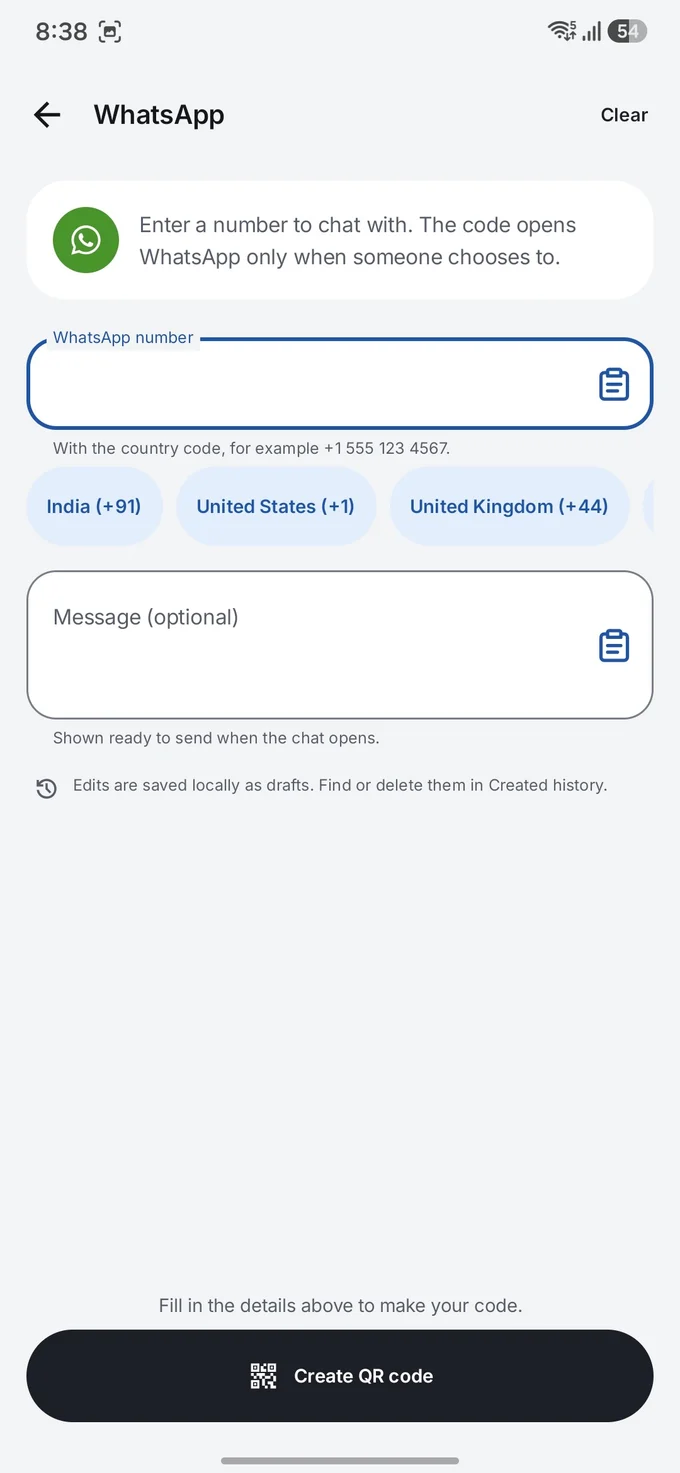
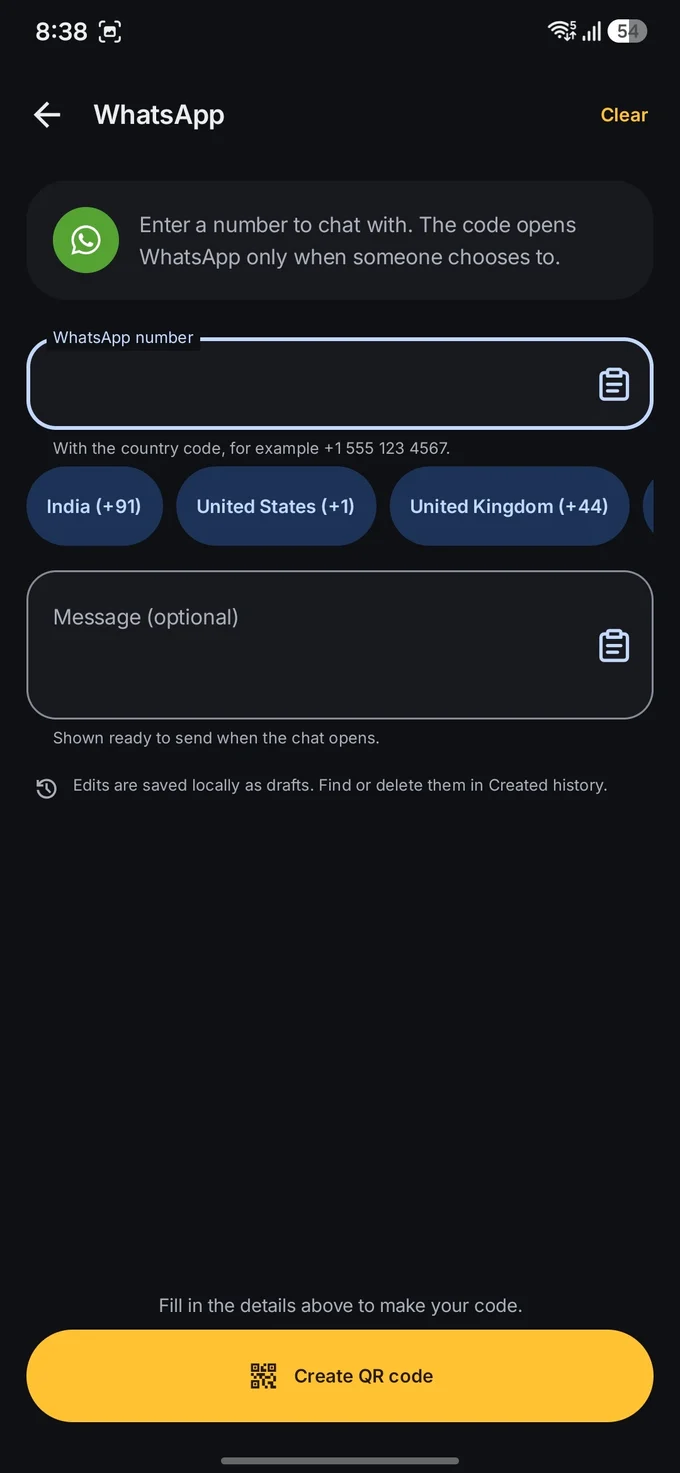
- Enter the WhatsApp number with its country code. You can tap a shortcut such as India (+91) to add the code.
- Optionally, type a Message. It appears ready to send when the chat opens, for example “Hi, I’d like to book an appointment.”
- Tap Create QR code.
- Optionally, add a caption such as “Message us on WhatsApp”, a frame, or your colors.
- Export the code as PNG to share, or PDF to print (SVG needs EveryQR Pro).
- Test it: scan it with another phone and check the chat opens with the right number and message.
The code opens WhatsApp only when the person scanning chooses to. Nothing is sent until they tap send.
What’s inside a WhatsApp QR code?
It’s a link in WhatsApp’s “click to chat” format:
https://wa.me/91XXXXXXXXXX?text=Hi%2C%20I%27d%20like%20to%20orderThe number comes after wa.me/, in full international format without the +, zeros before it, brackets, spaces, or dashes. The optional message comes after ?text=, with spaces and punctuation encoded. WhatsApp describes this format in its Help Center.
Because the number is part of the link, anyone who scans the code can see the number. Use a business number if you don’t want to share your personal one.
Other ways to get a WhatsApp QR code
- WhatsApp’s own QR code. In WhatsApp, open Settings and tap the QR code icon next to your name. This code lets people add you as a contact. To stop an old code from working, open the menu on that screen and choose Reset QR code. It doesn’t include a starting message.
- WhatsApp Business. The WhatsApp Business app has a Short link option in its Business tools, with a QR code and a default message you can edit. Menu names can differ slightly between app versions.
WhatsApp’s own codes are tied to your account, and you can reset them. A wa.me code from a QR maker works with any number and can include a message, but it can’t be reset; to change it, make a new code.
Troubleshooting
- “Phone number shared via URL is invalid.” The number is missing its country code, or has a leading zero. For India, use 91 followed by the 10-digit number.
- The message doesn’t appear. Some special characters need encoding. Generators like EveryQR handle this for you; if you build the link yourself, test it.
- It opens WhatsApp but not the chat. The number might not have a WhatsApp account.
- The printed code won’t scan. Make it bigger and keep good contrast. See QR code size for printing.
Tips for businesses
- Use a short, clear message that tells you what the customer wants: “Hi, I’d like to see today’s menu.”
- Say what happens next to the code: “Scan to chat with us on WhatsApp”.
- Brand it carefully. A logo is fine if the code still scans; see how to add a logo without breaking it.
- Print a test copy first, and scan it from the distance customers will use.
For other code types, read how to make a QR code for free or how to share your Wi-Fi password with a QR code. If customers are wary of scanning codes, how to check a QR code before you open it is a useful link to share. Browse all QR code guides.