How to make a QR code for a Google Maps location
Make a QR code that opens your shop, venue, or meeting point in Maps. Two free methods (a Maps link or coordinates), which works best, and how to test it.
To make a QR code for a Google Maps location, open the place in Google Maps, tap Share, copy the link, and make a QR code for that link. When someone scans it, Maps opens at your place, ready for directions. For a spot without a Maps listing, such as a back entrance or a meeting point, make a location code from its exact coordinates instead. EveryQR on Android does both, free and offline.
What you need: an Android phone with Google Maps, and the place or point you want to share.
Which kind of location code should you use?
| Maps link | Coordinates (geo:) |
|
|---|---|---|
| What the code holds | A link such as https://maps.app.goo.gl/… |
Latitude and longitude, such as geo:28.6129,77.2295 |
| What people see | Your place’s listing: name, photos, reviews, hours | A pin at the exact point |
| Works with | Any phone with a browser or Maps | Phones whose maps app handles geo: links |
| Needs internet to scan | No; to open the map, yes | No; to load the map, usually yes |
| Best for | Shops, restaurants, offices, venues | Gates, parking spots, stalls, rural sites |
For most businesses, the Maps link is better: it shows people your name and reviews, and it works on almost every phone. Coordinates are better when the exact point matters more than the listing.
Method 1: QR code for a Google Maps link
- Open Google Maps and find your place, or long-press the map to drop a pin.
- Tap Share, then Copy link (or copy it from the share sheet).
- Open EveryQR, tap Create, and choose Link.
- Paste the link and tap Create QR code.
- Optionally, add your colors. A caption frame such as “Scan for directions” is part of EveryQR Pro.
- Export as PNG to share or PDF to print.
- Scan the code with another phone and check that it opens the right place.
The link stays the same as long as the Maps listing exists. If you move premises, update your listing; a link to the listing will then show the new address.
Method 2: QR code for exact coordinates
- In Google Maps, long-press the exact spot to drop a pin. The coordinates appear in the search box or on the place card, such as
28.6129, 77.2295. - Copy the coordinates.
- Open EveryQR, tap Create, and choose Location.
- Enter the latitude (the first number) and longitude (the second number), in decimal degrees. Southern and western coordinates are negative; the minus and decimal-point buttons under each field help if your keyboard hides them.
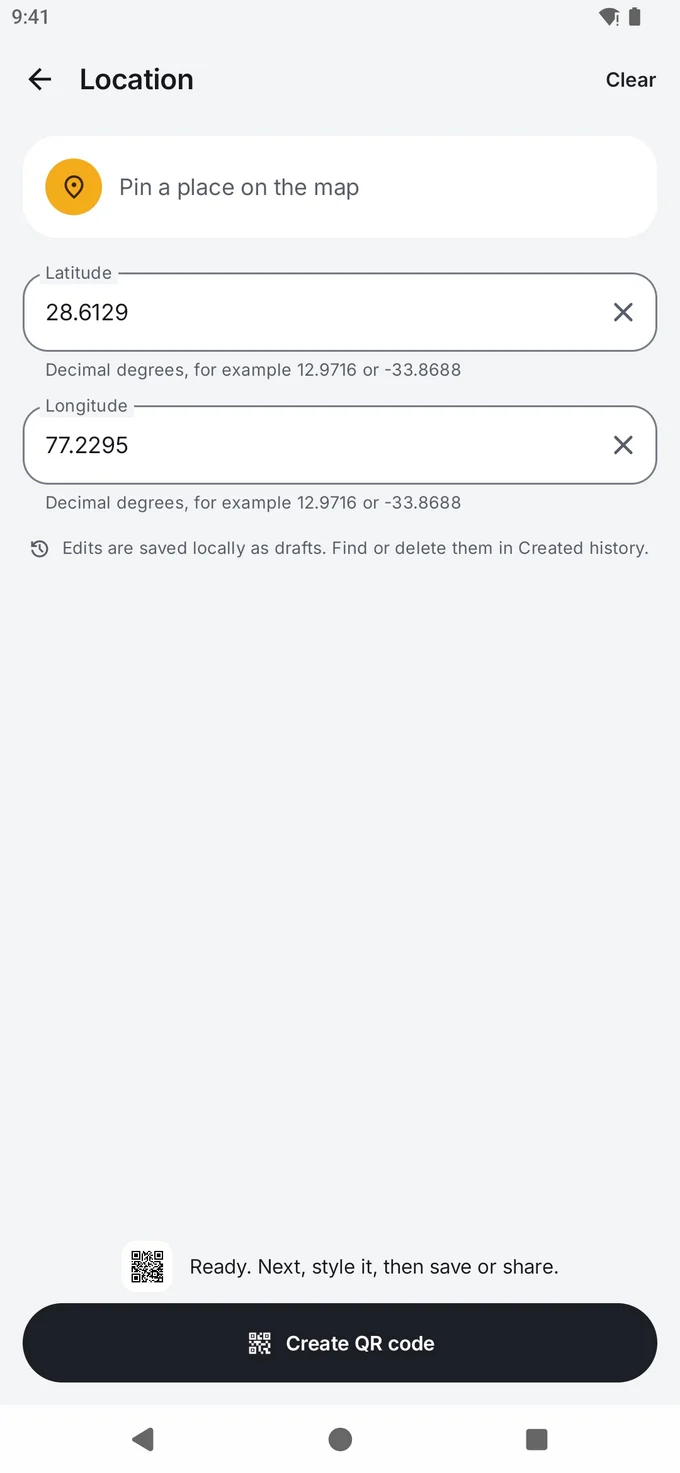
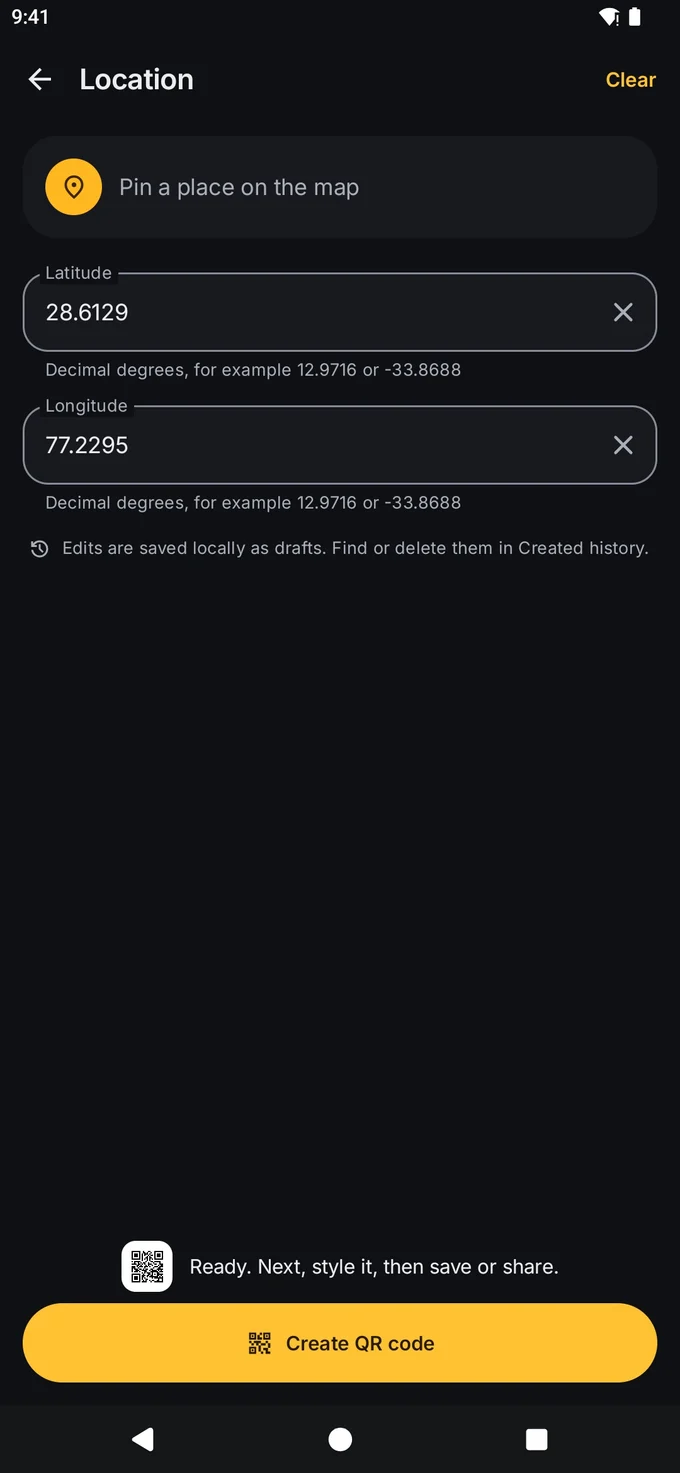
- Tap Create QR code, then style and export it as above.
- Test it on both an Android phone and an iPhone.
EveryQR stores the location as a standard geo: link with the coordinates. On Android, scanning it opens the phone’s maps app at that point. Support for geo: links varies on other platforms, which is why testing on an iPhone matters if your visitors use them.
Where location codes help
- Shop windows and business cards: “Scan for directions”.
- Invitations: the venue’s exact entrance. See QR codes for events.
- Deliveries: the right gate on a large site or campus.
- Property listings: the plot’s location, for visits.
- Meeting points: a car park or stall at a fair.
Troubleshooting
- The code opens a search instead of the place. The link may be a search result. Open the place itself in Maps, then use Share.
- An iPhone doesn’t open the location. Some iPhone scanners don’t handle
geo:codes. Use a Maps link instead (Method 1). - The pin is in the wrong place. Check the coordinate order: latitude first, then longitude. Swapping them puts the pin elsewhere on Earth.
- The map doesn’t load. The phone needs internet to load map tiles, unless offline maps are downloaded.
Tips
- Say what the code does. “Scan for directions” or “Scan to find the side entrance”.
- Print the address too. Some people prefer to type it.
- Size for the distance. A window sticker read from 1 m needs a code about 10 cm wide. See QR code size for printing.
Related guides
- How to make a QR code for a website link
- QR codes for events: invitations, check-in, and schedules
- How to make a QR code for free, with no sign-up
Browse all QR code guides.