How to put your contact details in a QR code
Make a contact QR code (vCard) so people can save your name, number, and email with one scan. Free steps on Android, what to include, and how to print it.
To put your contact details in a QR code, make a vCard QR code: a code that holds your name, phone number, and email in the standard format phones use for contacts. When someone scans it, their phone offers to save you as a new contact, with no typing. With EveryQR on Android, choose Contact, fill in your details, and export the code. It’s free, works offline, and needs no account.
What you need: an Android phone and the details you want to share.
What a contact QR code contains
A vCard is plain text with a label for each detail. A simple one looks like this:
BEGIN:VCARD
VERSION:3.0
N:Sharma;Priya
FN:Priya Sharma
ORG:Sharma Interiors
TEL:+919876543210
EMAIL:[email protected]
END:VCARD
The format is a published standard (RFC 2426 for vCard 3.0), so camera apps on Android and iPhone recognize it and offer Add to contacts. Because all the details are inside the code, it’s a static code: it keeps working as long as the details are still correct, with nothing to renew.
How to make a contact QR code with EveryQR
- Open EveryQR and tap Create.
- Choose Contact.
- Enter your first and last name, and any of: organization, phone number, and email address. You need at least a name or an organization. Include the country code on your phone number, such as
+91for India, so it works for people abroad; EveryQR suggests common country codes as you type.
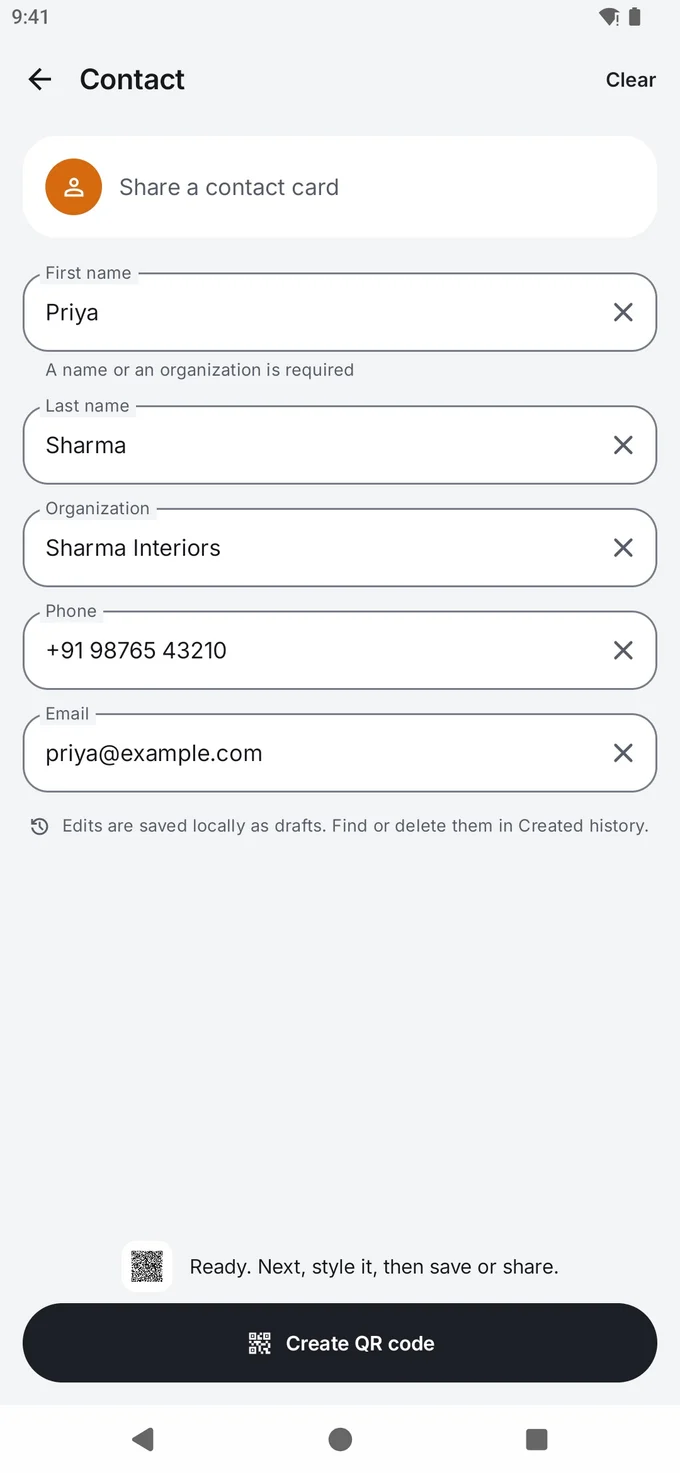
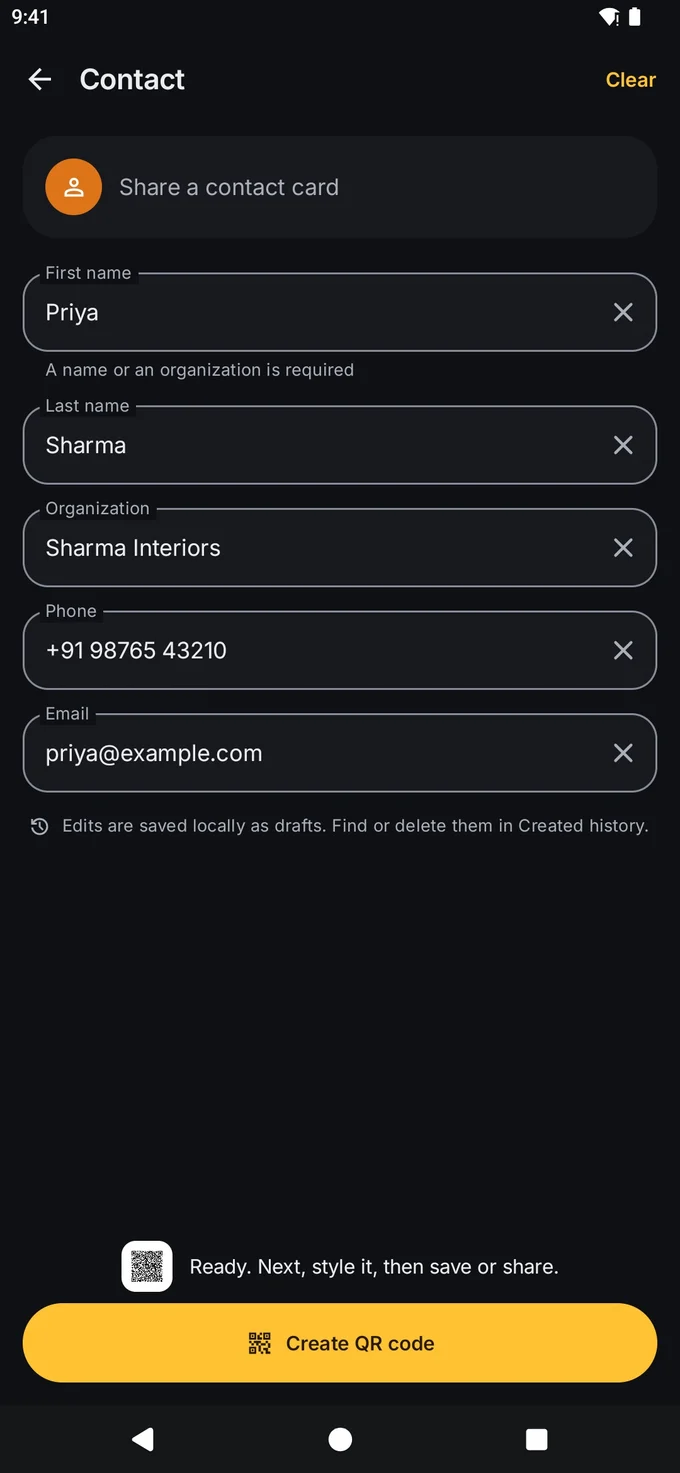
- Tap Create QR code.
- Optionally, open the design tools to add colors or a border. A caption frame such as “Scan to save my number” is part of EveryQR Pro. The readability check confirms the styled code still scans.
- Tap export and choose a format: PNG for sharing on screen, or PDF for printing.
- Scan the exported code with another phone, tap Add to contacts, and check every detail before you print.
If you stop partway through, EveryQR keeps your unfinished entry as a draft on your phone, so you can come back to it.
What to include, and what to leave out
| Include | Leave out |
|---|---|
| Your name as you want it saved | Your home address, unless it’s your business address |
| One phone number, with the country code | Several numbers “just in case” |
| Your work or main email | Personal details you’d not print on a card |
| Company name, for business use | Long notes or descriptions |
Every detail adds characters, and more characters make the code denser and harder to scan when printed small. How much data a QR code can hold shows how quickly codes grow.
Remember that anyone who sees the code can scan it. Put on it only what you’d print on a business card.
Other ways to share your contact by QR code
- Your phone’s contacts app. Some Android phones can show a QR code for a contact from the contact’s Share menu. Options differ by phone maker.
- A link to a contact page. If you need many fields (several addresses, social profiles, a photo), put them on a web page and make a QR code for the link. The page needs to stay online.
- WhatsApp. If people mostly message you, a WhatsApp QR code opens a chat with you directly.
Troubleshooting
- The phone shows text instead of “Add to contacts”. The scanner app may not recognize vCards. Try the phone’s built-in camera or another scanner.
- The name is saved wrongly. Some phones use the structured name field and others the display name. Enter your first and last names as you want them, and test on both Android and iPhone.
- The code won’t scan on a business card. Remove optional fields, print the code at least 2 cm wide, and see QR code size for printing.
- Details have changed. A static contact code can’t be updated. Make a new code and replace the old one wherever it’s printed.
Tips
- Add a caption. “Scan to save my contact” tells people what they’ll get.
- Test on two phones. Check one Android phone and one iPhone before printing a batch.
- Use a vector format for print. PDF stays sharp at any size.
- Keep a plain-text backup. Print your number and email next to the code too, for people who’d rather type.
Related guides
- How to make a QR code for free, with no sign-up
- QR code size for printing
- How to make a WhatsApp QR code
Browse all QR code guides.