How to scan several QR codes at once
Scan many QR codes in one go: photograph the page or sheet, let the app find every code, then copy or review them together. Steps for labels, tickets, and PDFs.
To scan several QR codes at once, take one photo or screenshot that shows all of them, then scan that image with an app that detects multiple codes. Live camera scanners, including your phone’s camera app, usually read only one code at a time. With EveryQR on Android, you pick the image, and the app finds every code in it and lists each one, offline.
What you need: an Android phone, and the codes in one clear photo, screenshot, or (for EveryQR Pro) PDF.
When scanning several codes helps
- A sheet of labels or stickers you’ve printed and want to check before using them.
- Event passes or tickets sent as one image or one document.
- Stock or equipment labels on a shelf, where you want every code at once.
- A poster or page with separate codes for a website, Wi-Fi, and a menu.
- A screenshot of a page that contains more than one code.
How to scan multiple QR codes with EveryQR
- Take a photo that shows all the codes, square-on and in focus. For codes already on your screen, take a screenshot.
- Open EveryQR. It opens on the camera scanner.
- Tap Gallery and choose the photo or screenshot. You can also share the image to EveryQR from your gallery or a chat app.
- Wait a moment while the image is read. EveryQR numbers each code it finds on the image and lists the results below, from top to bottom and left to right.
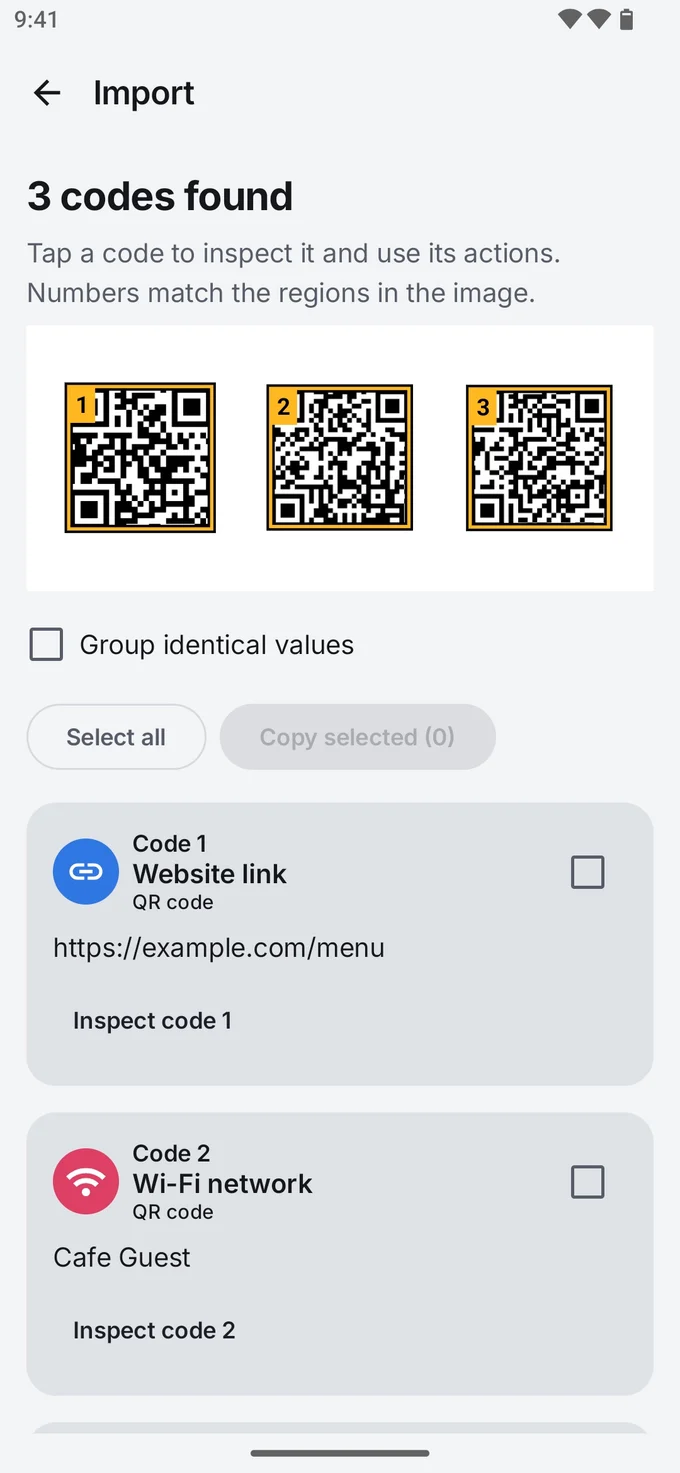
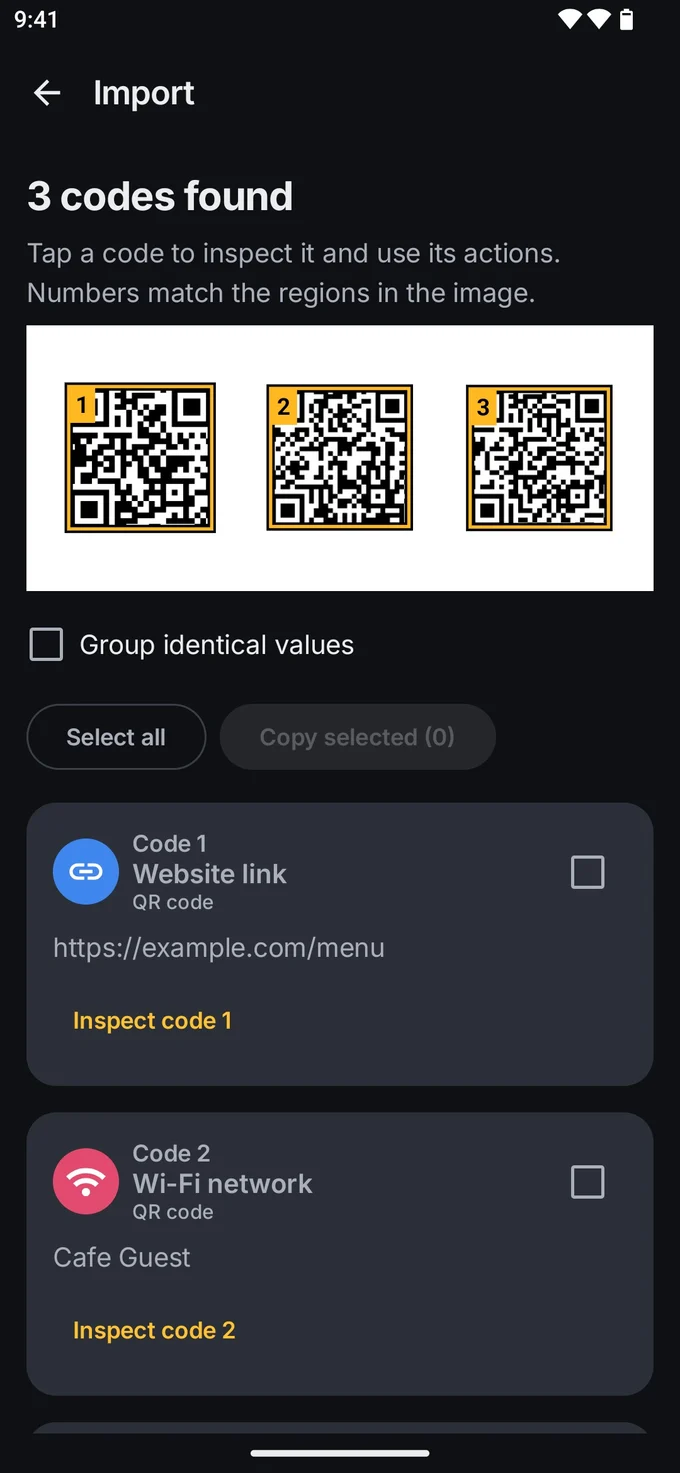
- Tap a result to inspect it. Links show their real web address before you choose to open them.
- To copy several results together, select them (or tap Select all) and tap Copy selected. They’re copied in the order they appear, separated by blank lines, ready to paste into a note or spreadsheet.
- If the same code appears more than once, such as on a sheet of identical labels, turn on grouping to see each distinct code once. Nothing is removed; grouping only changes the view.
Every distinct result you see is added to your on-device History, unless you’ve turned automatic history off.
Scanning many pages of codes from a PDF
If the codes are spread across a document, such as a ticket file or a printed label sheet saved as PDF, EveryQR Pro can extract every QR code and barcode from every page. Each result shows the page it came from, and you can export the list as a CSV file to open in a spreadsheet. It runs offline, and you can cancel a long document at any time.
On the free version, take a screenshot of each page and scan the screenshots instead. How to scan a QR code in a PDF covers both methods.
Other ways to scan several codes
- Your camera, one at a time. Point at each code in turn. It works, but you have to keep the others out of the frame, and nothing keeps a list unless your camera app has a history.
- Google Lens on a photo. Lens can read codes in a saved image. How it handles several codes in one picture varies by version, so check each result. See the comparison of Google Lens and a QR scanner app.
- Business tools. Warehouses and events that scan hundreds of codes a day use dedicated scanners or check-in apps linked to their own system. A phone app is better for occasional batches.
Troubleshooting
- Some codes aren’t found. Each code needs enough pixels to be read. Move closer, or take two photos of half the sheet each.
- Codes at the edge are missed. Keep a margin around every code in the photo. A code cut off by the edge of the picture can’t be read.
- Glare hides part of a code. Tilt the page slightly, or turn off the flash and use daylight.
- A code is found but has no readable text. Some codes contain binary data rather than text. EveryQR tells you how many codes were found without readable content.
- Still stuck? QR code not scanning? Fixes that work covers focus, lighting, and damaged codes.
Tips
- Photograph flat and straight on. Lay the sheet on a table and hold the phone parallel to it.
- Use good, even light. Shadows across a sheet of codes are a common cause of missed results.
- Split very large sheets. A full A4 sheet of 40 small labels is easier to read as two or three photos.
- Check the count. Compare the number of codes found with the number you expected before you rely on the list.
Related guides
- How to scan a QR code from a screenshot or photo
- How to scan a QR code in a PDF
- QR code not scanning? Fixes that work
Browse all QR code guides.